Day 4: UDP and JSON

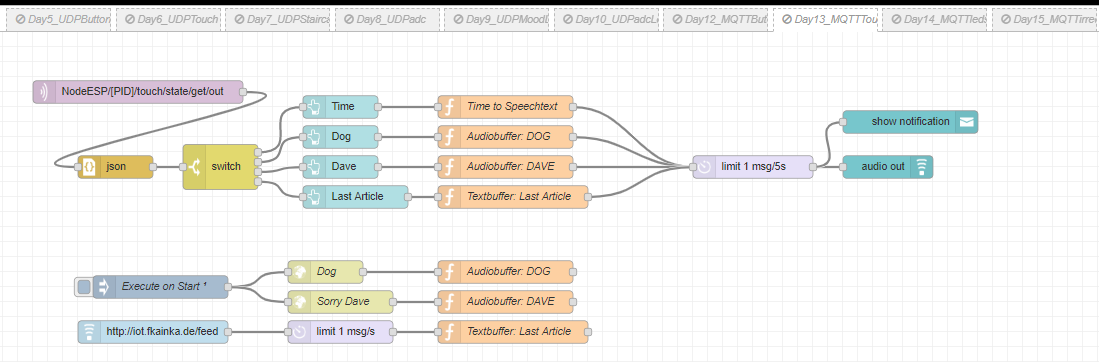
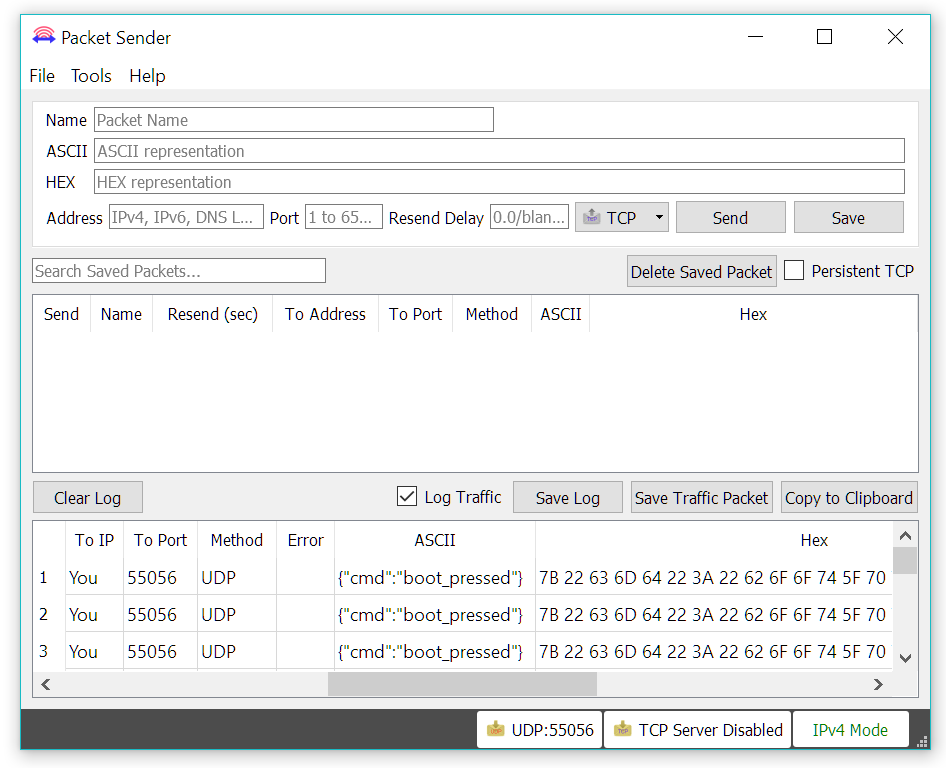
Behind the fourth door of the Advent calendar is a set of cables that is very useful for the upcoming hardware setup. But today in our project we are going to look at the JSON format; what is it and how does it help us communicating with the board. As usual, first you need to activate today’s program. You will also need the Packet Sender program with the same settings that we were using yesterday. Today, a message appears only after you briefly press on the board’s boot button. This message looks like this: ...
04.12.2018 · 3 min · Fabian Kainka

Day 3: UDP and Packet Sender

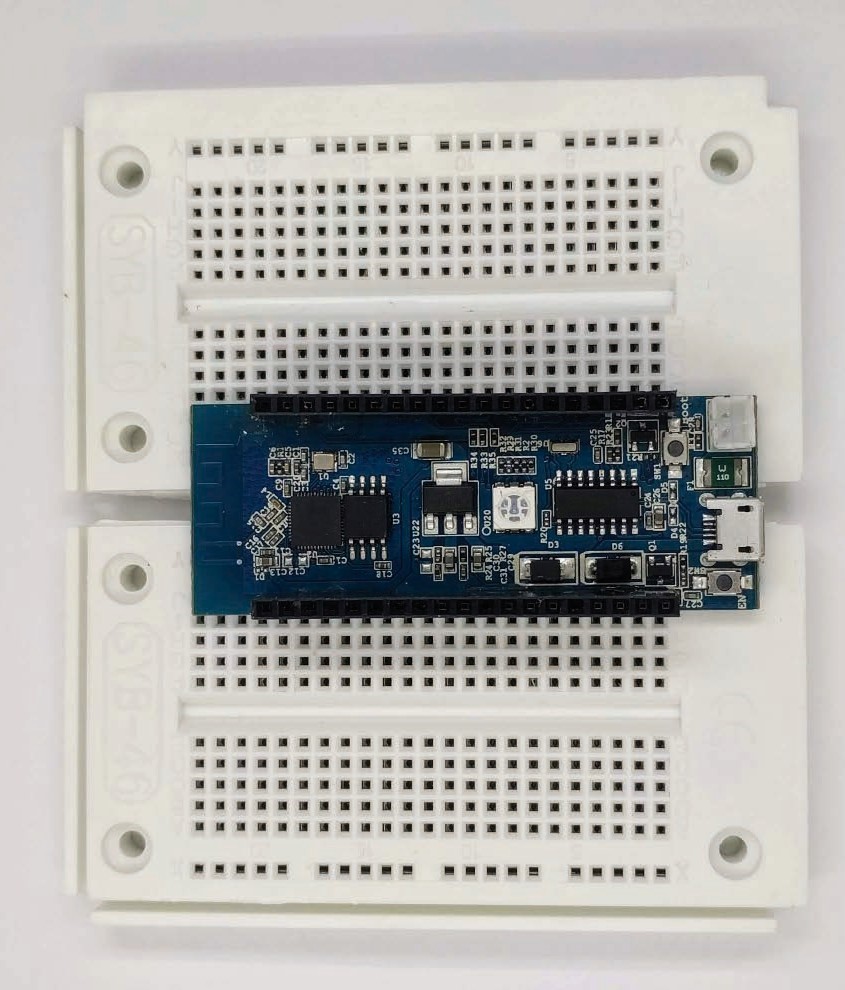
Today’s door reveals another breadboard. It can be plugged into the board of yesterday. The NodeESP board can now be placed on both boards together. However, this constellation will not work for everyone. Breaking off the side parts of the boards is the easiest solution. I have done this by fitting the boards into each other and then bending one until a side part broke off. I did the same thing with the other board. But you could use pliers, too. Without the side parts, you can place the boards closer to each other, and then there won’t be a problem with the grid. Simply plug the NodeESP board onto both boards as shown in the picture. This leaves enough room for other components. In today’s project, we will learn how to connect to the board from your PC without using the web browser. ...

03.12.2018 · 3 min · Fabian Kainka

Day 2: OnBoard LED and Update

On the second day you will find a breadboard for the upcoming experiments hidden behind the door. I would recommend however, that you do not yet plug your NodeESP into the board. Let’s first look today at how we launch the programs preinstalled on the board and bring the board up to date. Reconnect your board first to a power source. Wi-Fi data that you entered yesterday is still stored and the board should automatically connect to your Wi-Fi network. Then access the board page using the IP or mDNS name (http: //nodeesp.local/). Now, the first thing you do is searching for possible software updates. To do this, open the configuration page, click Advanced Settings at the bottom and click on Check for Firmware Updates. ...

02.12.2018 · 2 min · Fabian Kainka

Day 1: The NodeESP Board

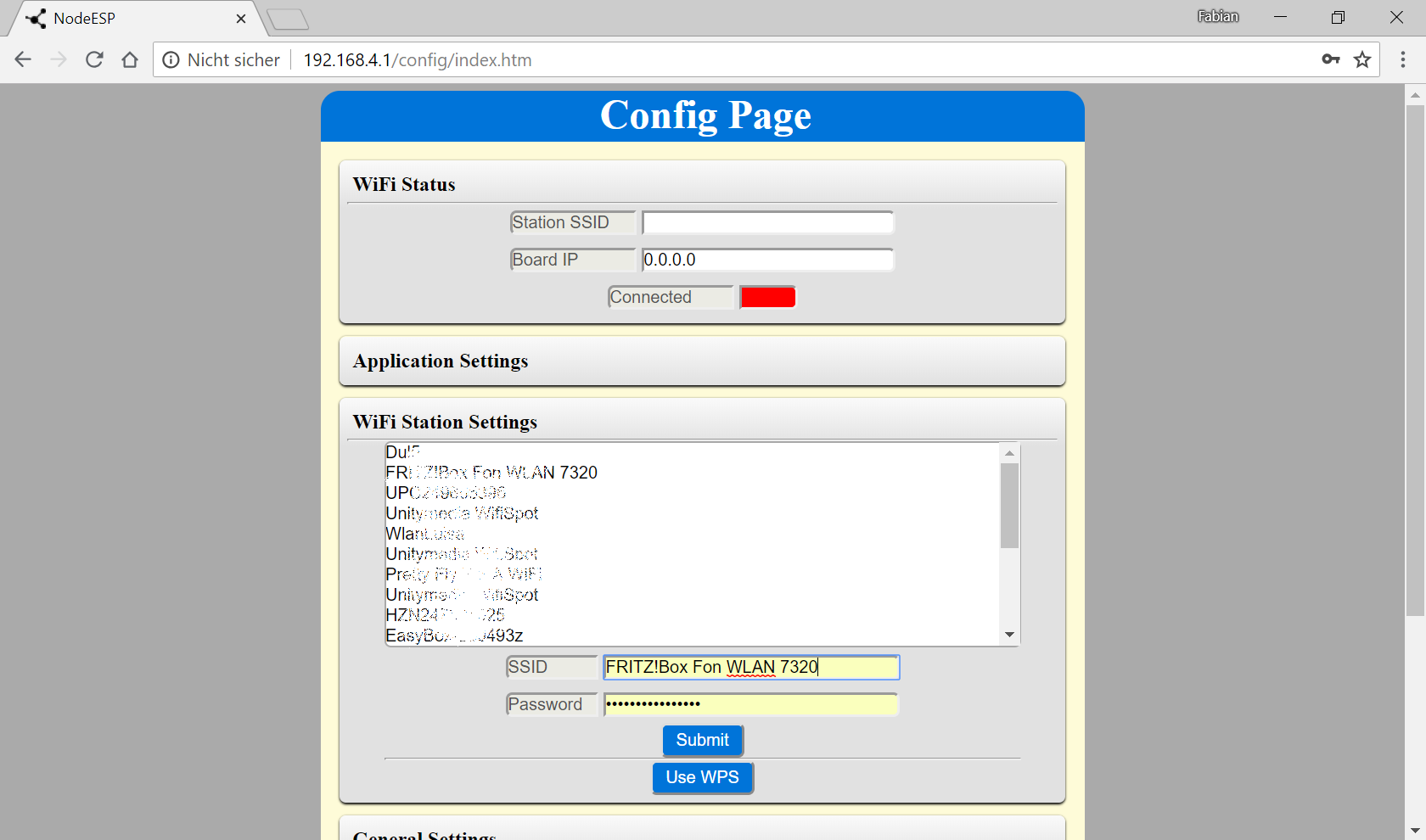
This is the first day of the 2018 Advent calendar project. The time has come to open the first window. Behind this calendar door you will find a microcontroller board. The main task today is to connect to the home network and to become acquainted with the board. The NodeESP board with WPS button selected In a first step we will supply power to the board by simply connecting the board using a MicroUSB cable to the PC or to a standard smartphone charger. You will need at least 300mA to power the board. Older laptops and USB hubs may pose a problem, if they do not have an external power supply however. After a short while the RGB LED on the board turns on and glows yellow. Initialisation is complete. Now all you have to do is enter your Wi-Fi data. There are two ways to do that: ...

01.12.2018 · 4 min · Fabian Kainka

Advent Calendar IoT - 2018 [Smarthome Edition]

Adventskalender Internet of Things 2018: Experimente für Smart Home Dank des Adventskalenders Internet of Things (IoT) muss die Wartezeit bis Weihnachten nicht langweilig werden. Der bereits vorprogrammierte Mikrocontroller in Verbindung mit dem Node-RED Programmier-Tool bietet eine Menge Spielraum für 24 vielfältige und spannende Experimente rund um das Thema Smart Home und Hausautomatisierung. Internet of Things und Smarthome beinhalten die automatisierte Erfassung und Steuerung von Sensoren und Aktoren in einem großen Netzwerk. Vom automatisierten Ein- und Ausschalten von LEDs über das Steuern Ihres TVs von irgendwo in der Welt bis hin zur Langzeitüberwachung Ihres Raumklimas, mit einfachen Beispielen werden die verschiedenen Aspekte der Hausautomatisierung praktisch ergründet. ...

07.11.2018 · 2 min · Fabian Kainka

Tag 0: Alle Flows des Kalenders

Wie in jedem Jahr finden Sie an dieser Stelle alle Programme (dieses Jahr wohl eher Flows) des IoT Adventskalenders 2018. Ich verwende dieses Jahr Pastebin um alle Flows an einer Stelle zu speichern und leichter nachträglich bearbeiten zu können. Außerdem hat Wordpress dann keine Chance die Formatierung oder Sonderzeichen zu verändern. Der einfachste Weg zum Kopieren der Flows ist, auf den “Download Raw” Button zu klicken und die sich öffnende Seite komplett zu kopieren. Wenn Sie dann den Text in Node-Red einfügen (Menü->Import->Clipboard) haben Sie automatisch alle Flows in Tabs strukturiert hinzugefügt. Zusätzliche Nodes müssen eventuell noch nachinstalliert werden (z.B. das UI-Node) ...

07.11.2018 · 1 min · Fabian Kainka