Day 14: Webserver for the RGB-LED

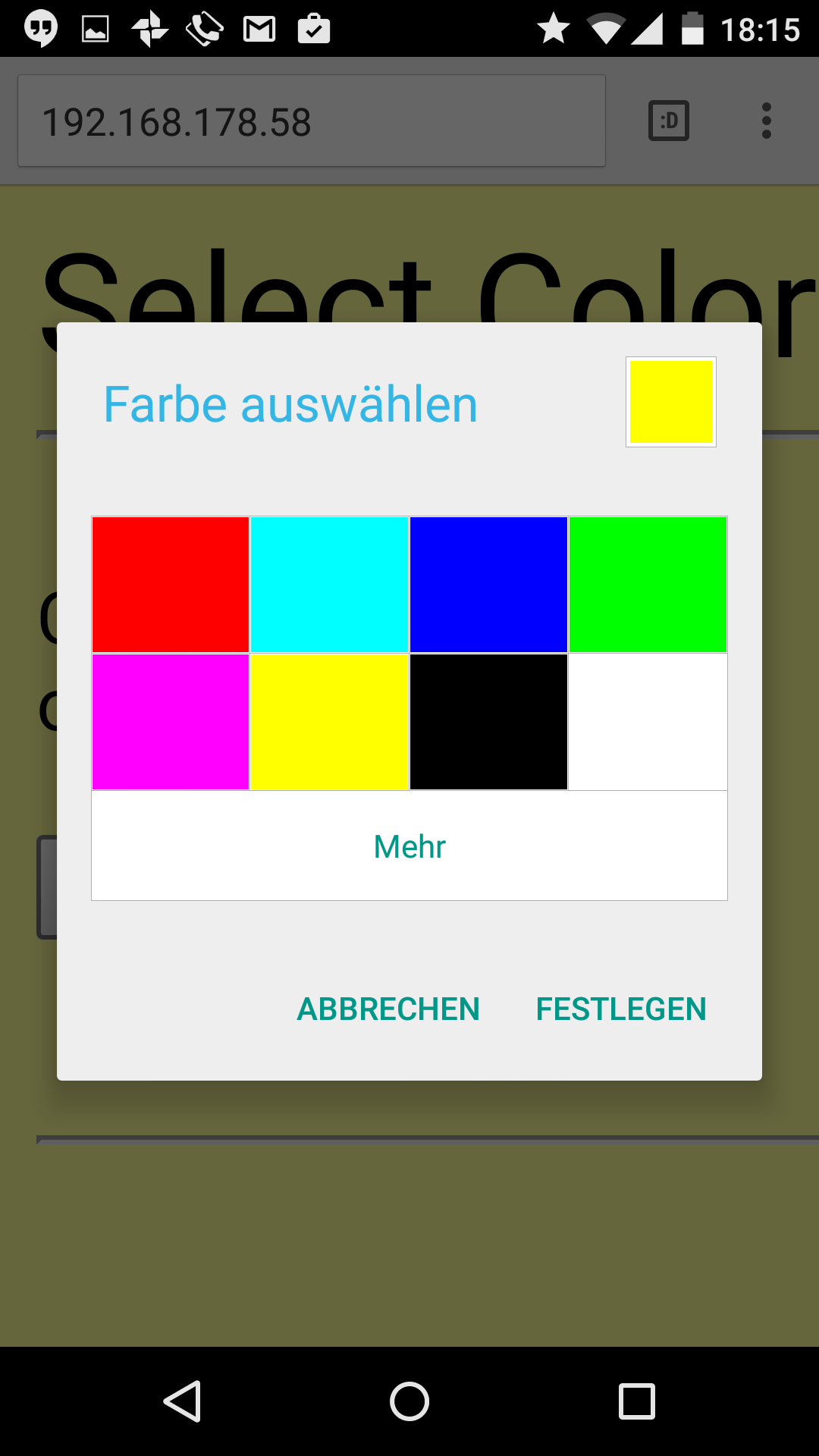
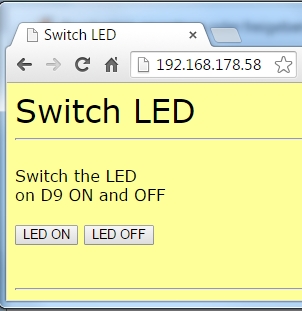
Today’s project is about controlling the RGB-LED by web server. A well-structured interface can be used to change the colour of the LED. The website has also been adjusted and should be easy to display even on Smartphones. The website on a PC browser Behind today’s advent calendar door, there is another resistor, but this one is of 10 kΩ (brown, black, orange). You will need it for tomorrow’s experiment. ...
14.12.2015 · 2 min · Fabian Kainka

Day 13: Website with buttons

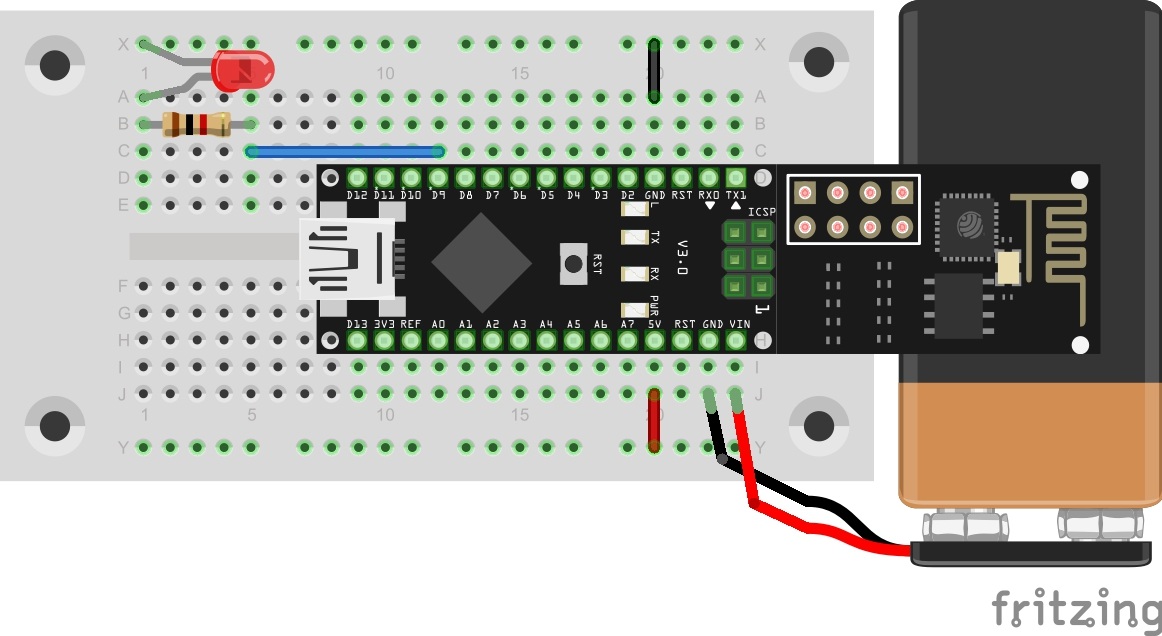
In today’s experiment, the illustration of the website is even more sophisticated. There are now also control elements that permit much more comfortable control of the LED. The 9V-batterie powers the board The structure of today’s experiment is no different from yesterday’s: An LED at pin D9, which can be controlled via the module. As an additional component, today’s door once again holds a resistor with 1 kΩ. If necessary, you can now reduce the brightness of an LED by switching two resistors in series. ...

13.12.2015 · 1 min · Fabian Kainka

Day 12: Autonomous webserver

The results of yesterday’s experiment are now to be used in an autonomous program. Today’s program not only sends a simple website to the browser, but also permits control of an LED. The 9V-batterie powers the board Behind today’s door, you will find a 9-V battery clip that can make your board mobile. As an alternative, you may also use a Power Bank (a battery pack usually used for mobile phones). If you want to use the 9-V-battery, observe that the red wire must be connected to Vin, and the black one to GND. The figure shows the setup of today’s experiment with external power supply. ...

12.12.2015 · 1 min · Fabian Kainka

Day 11: TCP-Webserver

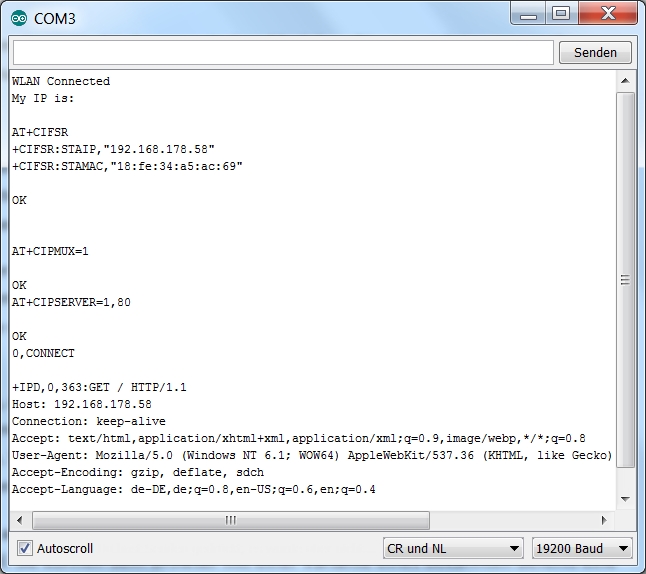
In the previous experiments, we dealt with the subject of TCP and access to web servers a lot. Today, the module is to act as a web server of its own for the first time. Behind the door of the 11th day, there is a special cable that will be very useful soon. A special setup is not necessary today, since the program works similarly to the serial monitor programme of day one. ...

11.12.2015 · 2 min · Fabian Kainka

Day 10: Temperature display

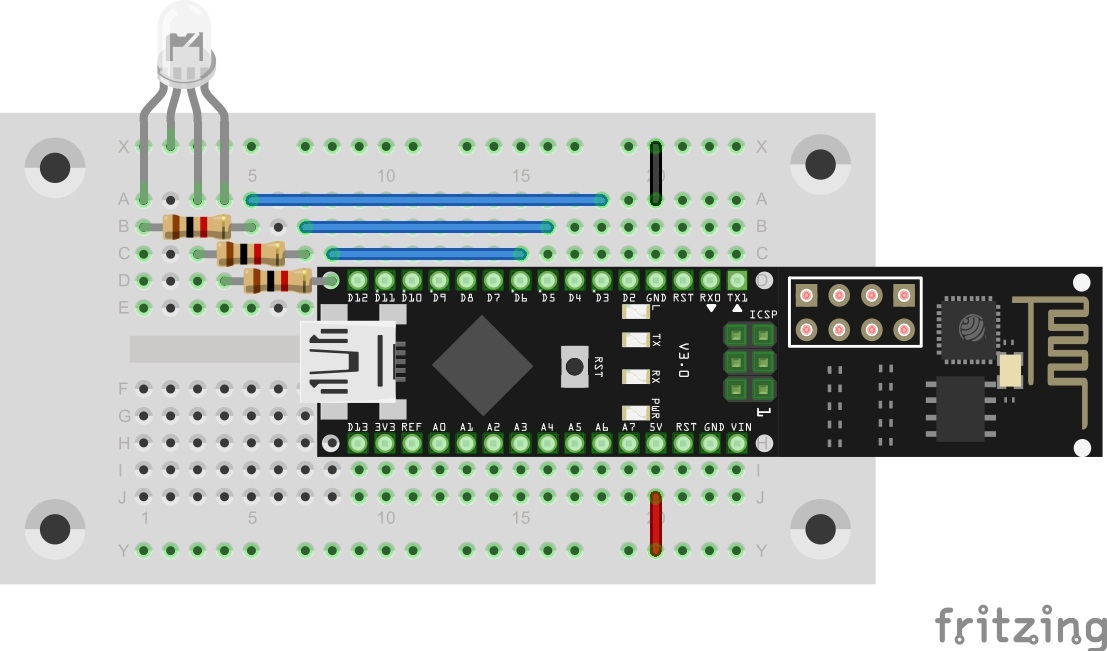
Today’s project is an intuitive display of the current temperature. With a single look, you can guess at whether it is sensible to take along a warm jacket. The RGB-LED on Pins D3, D5 and D6 Behind today’s door, there is another LED. This is a special one. It is an RGB-LED. RGB means Red, Green, Blue, the LED actually is made up of several LEDs with a shared cathode connection. A combination of the different colours with different brightnesses permits presenting almost any colour. The LED can be connected to the PWM outputs D3, D5, D6 of the controller with dropping resistors. ...

10.12.2015 · 2 min · Fabian Kainka

Day 9: TCP time

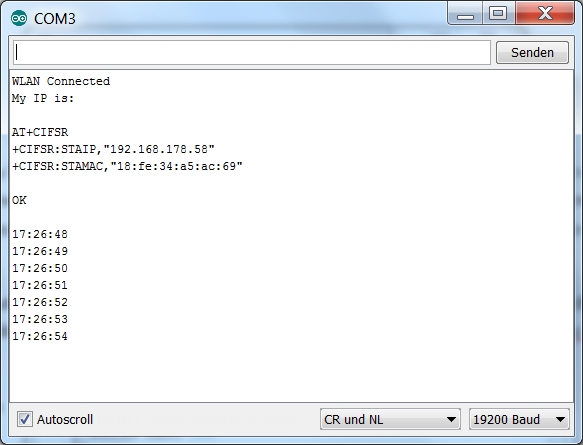
Today’s project uses the functions of the prior test to independently collect information from a website. The program specifically loads the current time from a dedicated website and thus sets the internal clock of the controller that is implemented by library. Behind today’s door, there is another resistor with 1 kΩ. All three resistors will be needed for tomorrow’s experiment. The program: Day9_TCPAutoTime While yesterday’s program still required mostly manual operation, today’s program works mostly autonomously. The controller connects to the website entirely independently: ...

09.12.2015 · 2 min · Fabian Kainka

Day 8: A browser

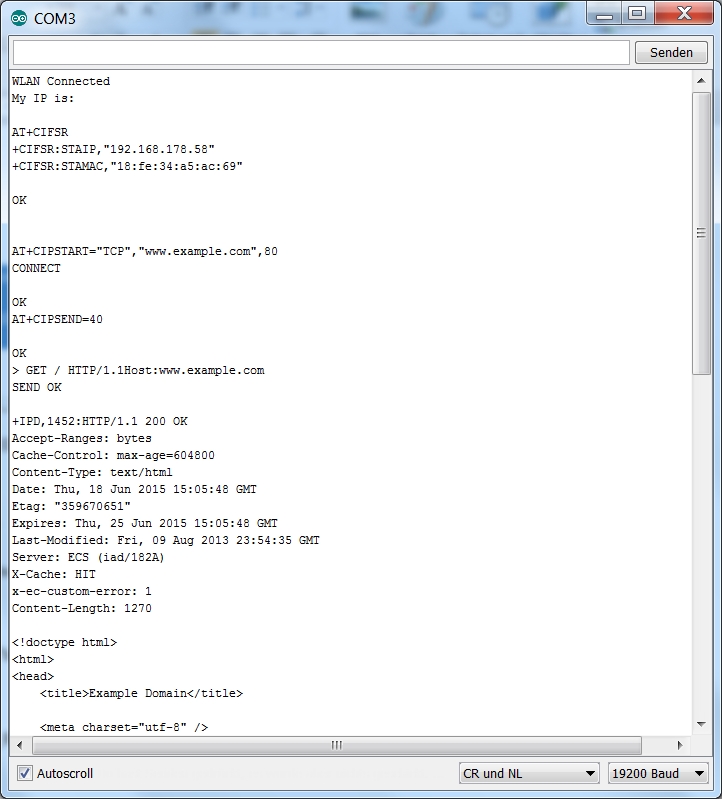
In the last days, we mostly dealt with the UDP protocol with which data can be sent out simply and directly. In the next few days, we will deal with the TCP (Transmission Control Protocol). TCP only permits one connection at a time between precisely two computers. It is mostly used online for browsing on websites. Behind today’s door, there is another resistor with 1 kΩ (brown, black, red). As with all other parts: keep it safe, even though you are not using this part today yet. ...

08.12.2015 · 2 min · Fabian Kainka

Tag 7 (special): Hinweis für Arduino Neulinge - Teil 2

Der erste Teil Arduino Beginner Kurses war scheinbar für viele sehr hilfreich. Deswegen habe ich mich dazu entschlossen, auch den zweiten Teil des Handbuches zu überarbeiten und online zu stellen. In diesem zweiten Teil geht es nun darum, Programme selbst zu schreiben und dabei auch etwas von den Grundlagen in der Arbeit mit Mikrocontrollern zu lernen. Diese Anleitung habe ich bewusst erst heute veröffentlicht, da an dem heutigen Tag auch alle nötigen Bauteile aus dem Adventskalender vorhanden sind, um die kleinen Projekte selbst testen zu können. ...

07.12.2015 · 1 min · Fabian Kainka

Day 7: Analogous sensor

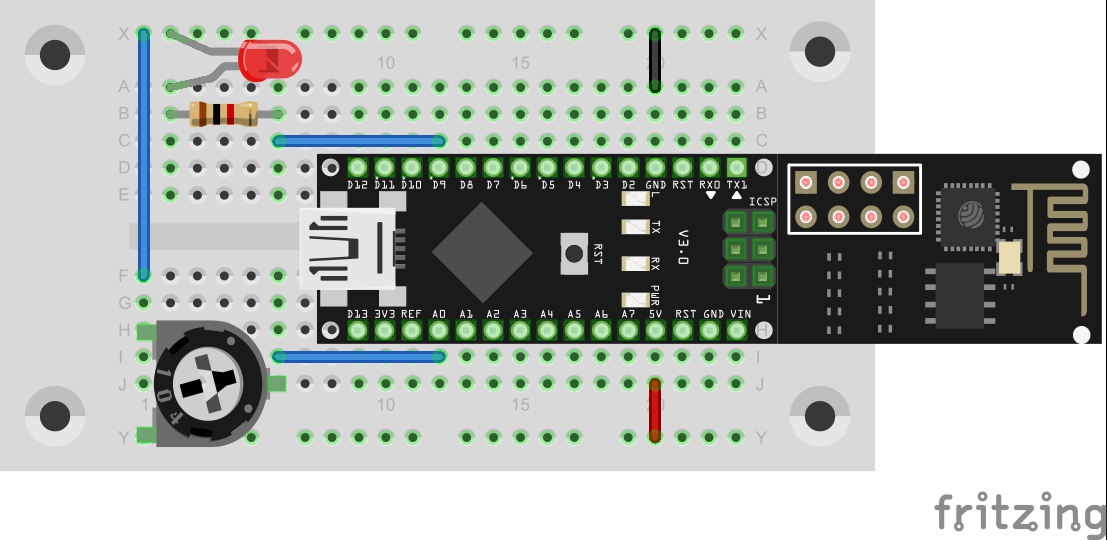
In the last project, a button was used to deal with the simplest form of a sensor. This time, a potentiometer should be used as an analogue sensor to permanently send measured values into the network. Behind the 7th door of the advent calendar, there is a potentiometer with 10 kΩ. The setup is shown in the lower figure. The setup on pin A0 The program: Day7_UDPAnalog ...

07.12.2015 · 2 min · Fabian Kainka

Day 6: UDP-Button

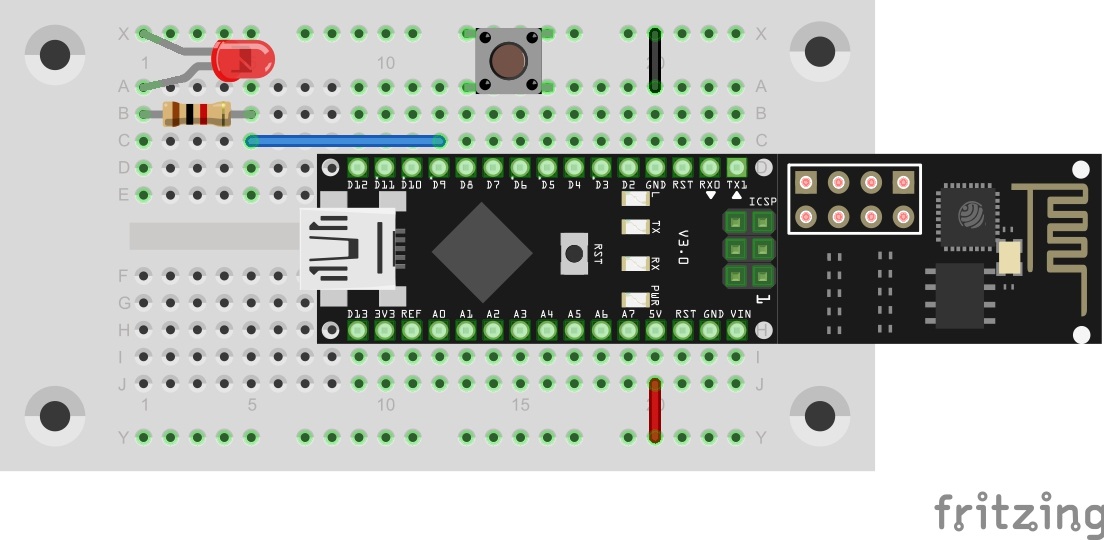
In yesterday’s program, the first commands were evaluated by the controller. Today’s program maintains this function but can also additionally send a command into the network independently. The button on pin D8 You will find a button behind today’s door. It is used as a simple sensor here. Connect it to the controller as shown in the setup image. The program: Day6_UDPSwitch ! Attention: Some MAC-Users reportet a bug in the PacketSender-Software. This bug doesn’t allow you to change the ports. If you have problems with this bug you can change the ports in the Arduino program. All you have to do for todays project is to change the line 83 from succes &= sendCom(“AT+CIPSTART="UDP","192.168.4.255",90,91”, “OK”); to succes &= sendCom(“AT+CIPSTART="UDP","192.168.4.255",5505,5506”, “OK”); ...

06.12.2015 · 1 min · Fabian Kainka