Day 22: Climate Guard

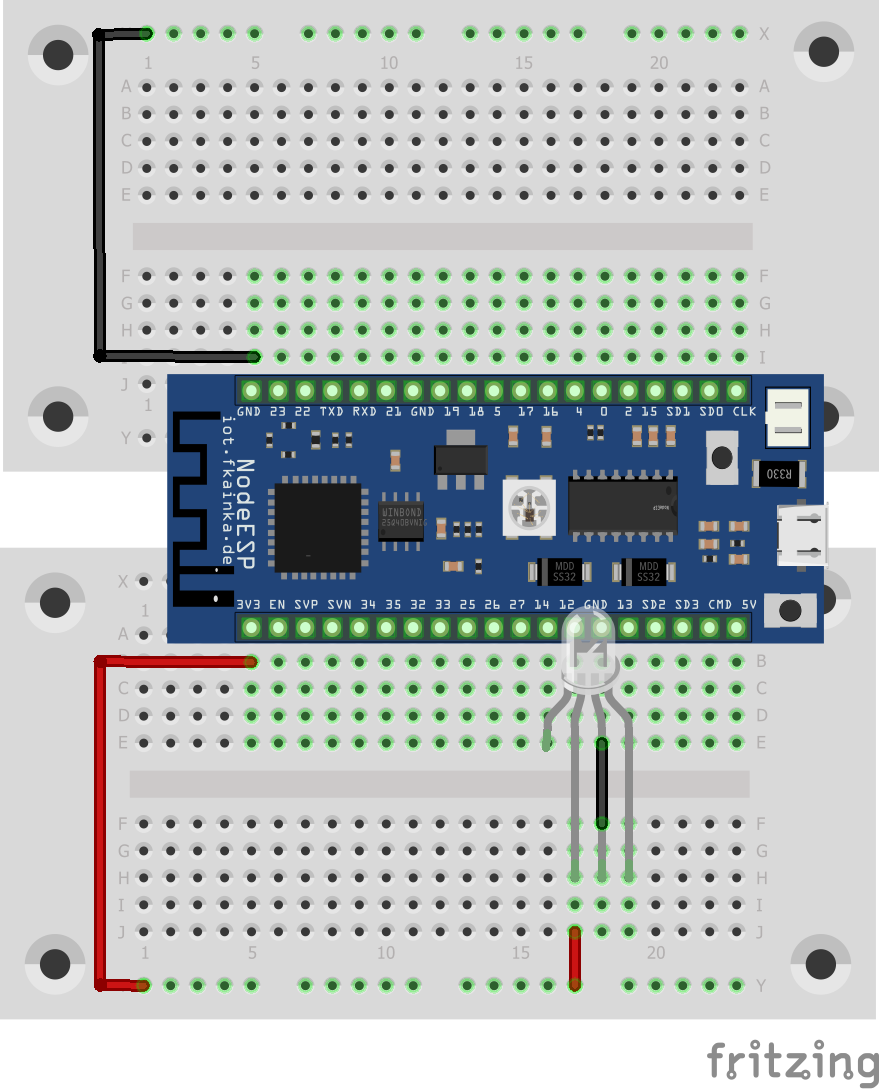
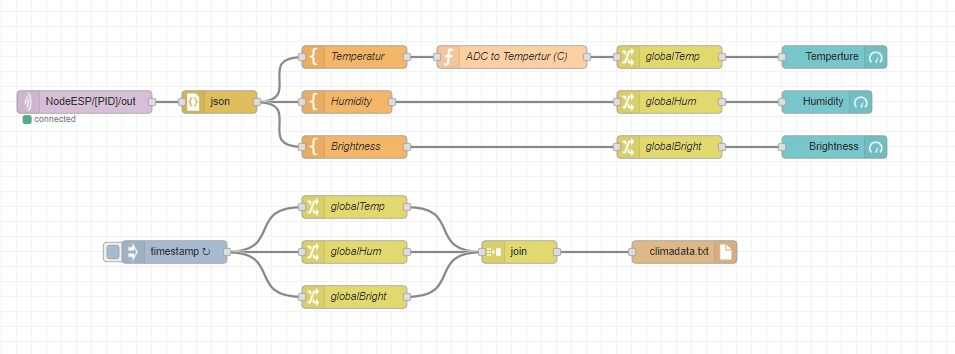
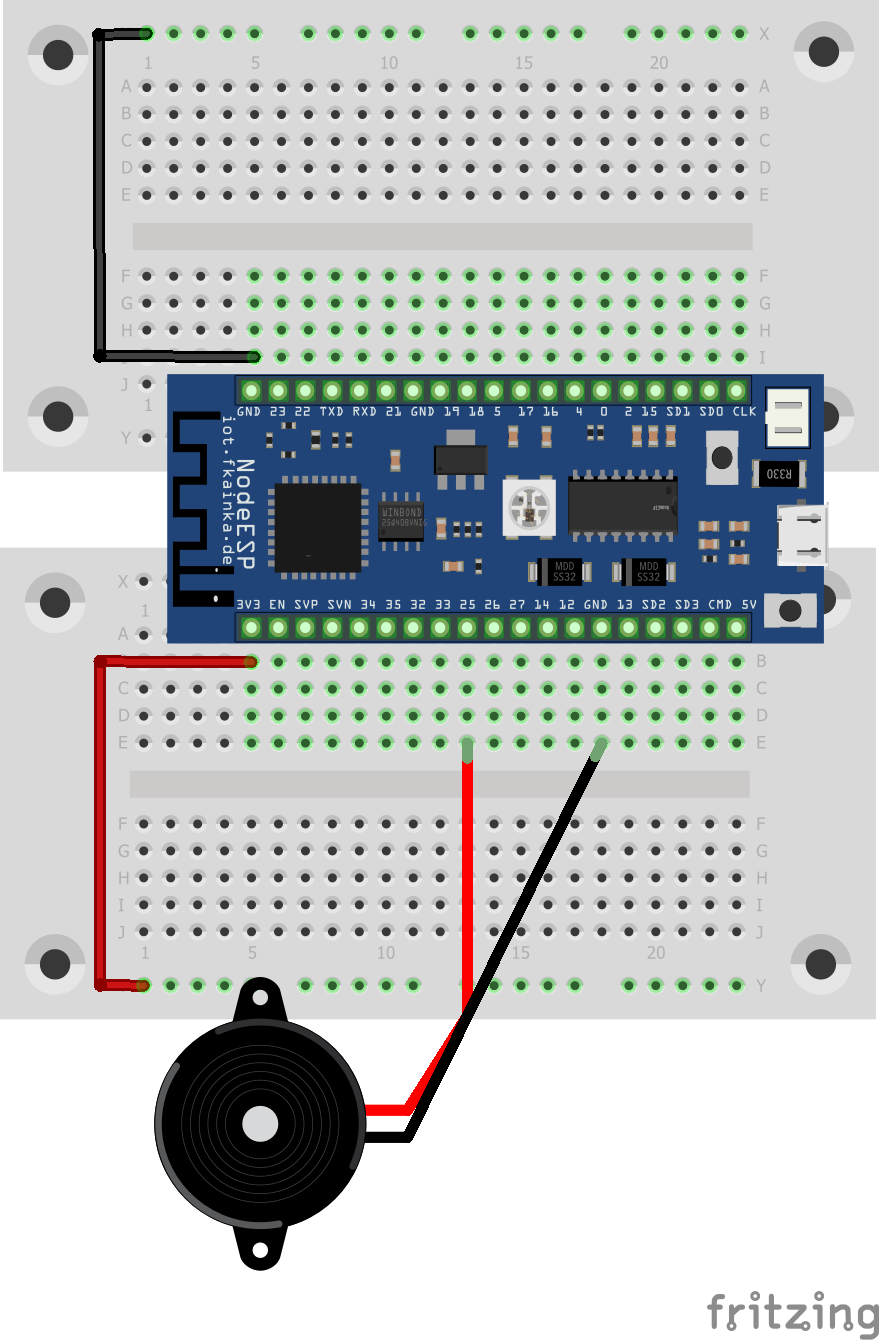
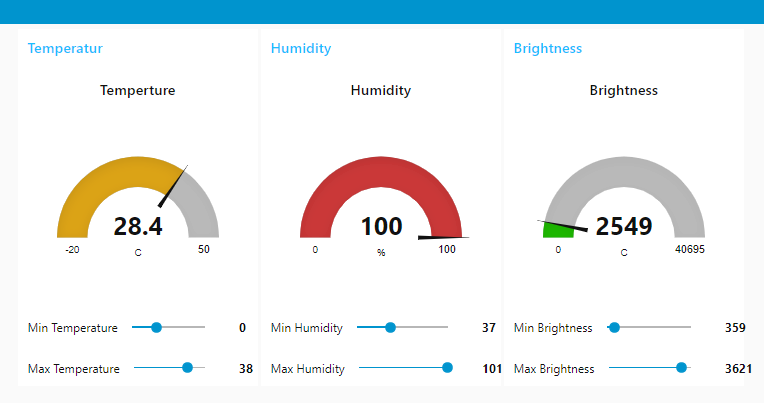
The door of day 21 reveals again a sensor, which we will use to measure the humidity level present. With the following circuit we will build a comprehensive indoor climate monitor. The indoor climate monitor circuit Our experiment today uses three sensors: the temperature sensor (NTC), the light sensor (photo transistor) and the humidity sensor. Altogether they deliver a real good impression of the current climate situation in a room. Let’s start the program of today. ...
22.12.2018 · 2 min · Fabian Kainka

Day 21: Piano Player

The door of day 21 reveals a loudspeaker. We will use it in our experiment today to play some music. We will need a very simple setup for this. Setup In our experiment we will connect the speaker to one of the board’s two DAC outputs. DAC means digital/analogue converter and with this we can generate an analogue signal using digital commands. In our experiment today, we will use it to produce sounds, and to be more precise, we are talking about piano sounds. The notes, pauses and keys are sent via UDP by means of an array of numbers. ...

21.12.2018 · 2 min · Fabian Kainka

Day 20: Plant Guard

Behind the door is an NTC resistor (Negative Temperature Coefficient) that measures the temperature. Together with the photo transistor and a few wires, we are going to build a plant guard that alerts us, when a plant it is monitoring is exposed to bad conditions. We will use the following setup besides the program of today. The plant guard The two yellow wires are just simple wires that can be inserted into the potting soil. They are used to monitor the level of moisture in the soil. During our initial tests, we will just touch the two wires with a finger. ...

20.12.2018 · 2 min · Fabian Kainka

Day 19: CheerLights

Today we have a very special LED waiting behind the door. It is an RGB LED with integrated controller (type PL9823, equivalent to WS2812) and with it you can now connect several LEDs in series and control them individually by means of a protocol. Today we will start by controlling one LED only. Here, an experiment that is almost customary in my Advent calendars fits in handy: the CheerLights project by Hans Schaaler. For all those who do not yet know the project: these are globally linked colourful lights which can be controlled simultaneously via Twitter commands. And here Node-RED fits in very well. The experiment today requires the following setup besides the program of today. ...

19.12.2018 · 3 min · Fabian Kainka

Day 18: Candle Alarm

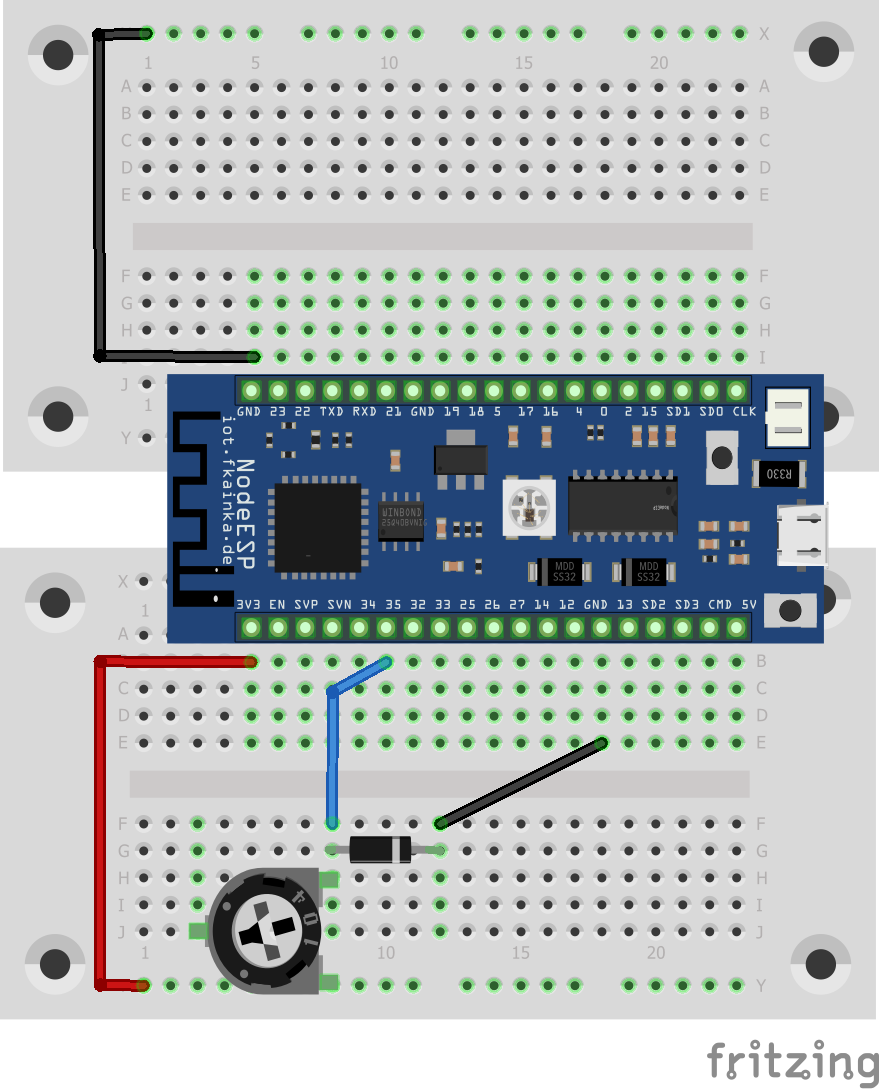
And today we have a small diode waiting behind the door. We are going to use the diode as temperature sensor for particular high temperatures and with it we will build a small candle guard. Breadboard Setup Today’s setup consists of the diode and the potentiometer, which we will use as a 10-kOhm resistor. This resistance is fixed and cannot be adjusted. The board will measure the voltage at the diode and sends the values to Node-RED via MQTT. ...

18.12.2018 · 1 min · Fabian Kainka

Day 17: Time-controlled Lights

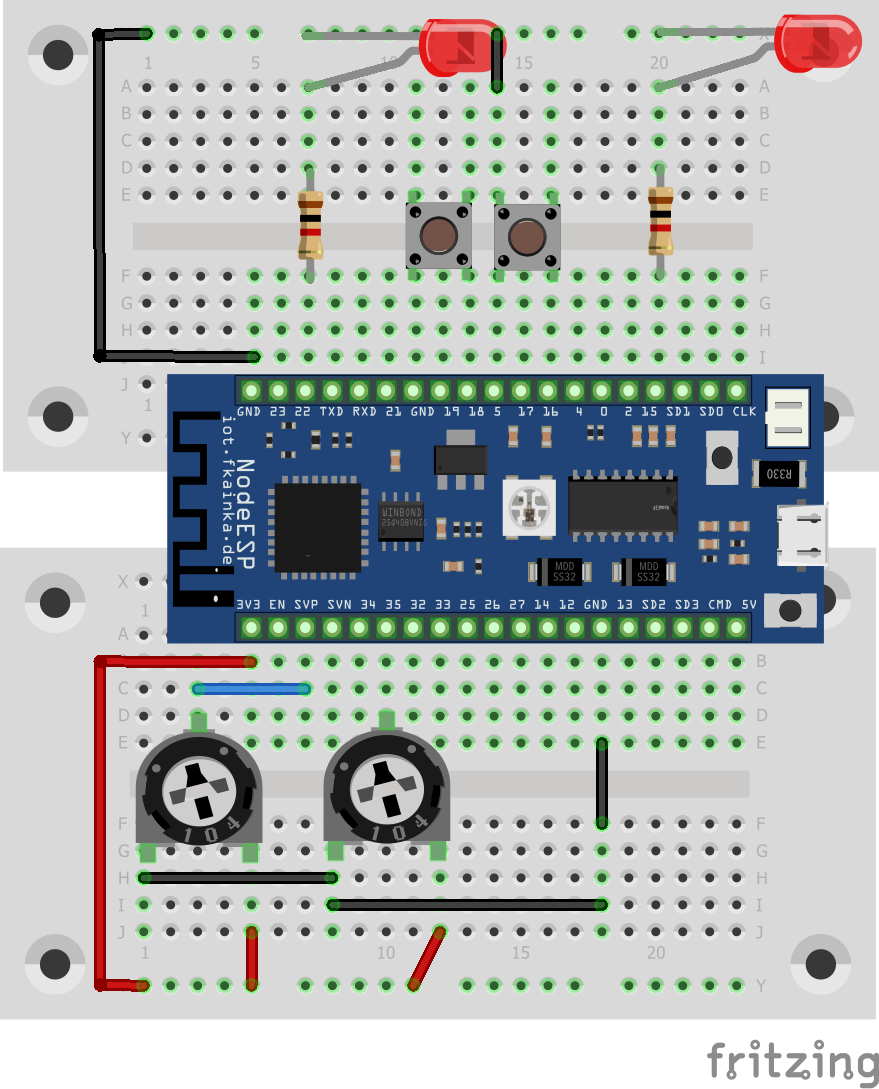
The door of day 17 reveals another potentiometer. Now we have one potentiometer for each LED and thus we will develop the program of Day 13, the Smart Lights, so that we will get a more convenient and intuitive dimming feature. We will also learn today how we can start timed events with Node-RED. Breadboard Setup Activate today’s program in the web interface. As always disable previous flows and change the MQTT topic to reflect your personal ID and then install today’s flow into the Node-RED environment. ...

17.12.2018 · 2 min · Fabian Kainka

Day 16: Universal Remote-Control

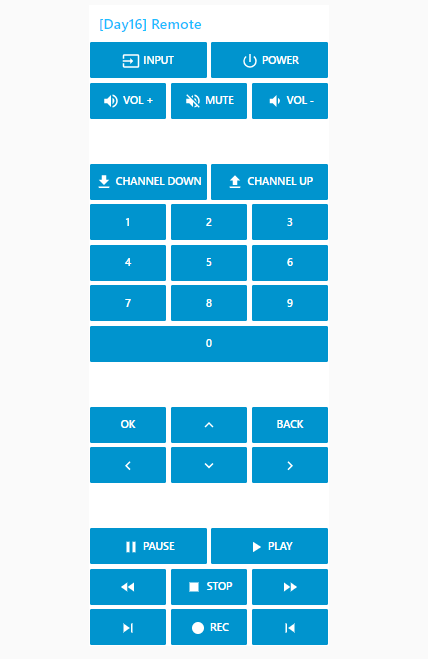
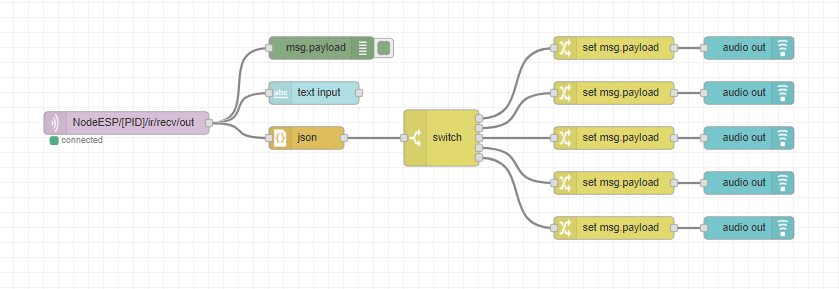
The door today reveals the counterpart to yesterday’s component, namely an IR diode. Now you can build a real remote-control for your TV and control it conveniently via smartphone and website. We will use the following setup. Setup of remote controls with IR receiver and transmitter diode Select the program for today. The board will start again in headless mode; the board’s website will not be available but you will have the board’s MQTT feature. To switch to default mode, remove the jumper on pin 23 and restart the board. ...

16.12.2018 · 2 min · Fabian Kainka

Day 15: Remote Control Receiver

The door reveals a very special component today, namely an infrared receiver module. You can use it to 15. Tag receive customary infrared remote-control signals. We will use the following setup. This is how you properly connect the IR module to the board After the circuit is set up, select today’s program. Please note that you will not be able to reach the board’s website, because it is deactivated for our experiment today. The board works now in headless mode and has no visible interface. If you want to run the website again to activate other programs, for example, you only have to pull out the jumper from pin 23 and restart the board. Everything will run as usual. ...

15.12.2018 · 2 min · Fabian Kainka

Day 14: Smart Lights

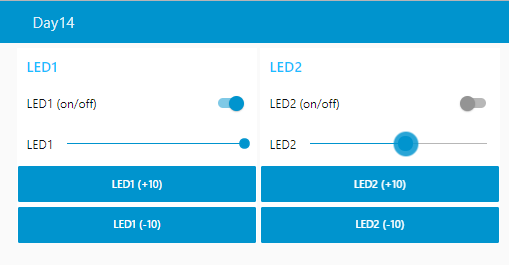
The door of day 14 reveals another LED. Now we have two LEDs with resistors and two buttons and 14. Tag cables, enough to build a complex lighting system. We will use the following setup: Setup with four loose cables (yellow) as touch buttons Enable today’s program and install today’s flow. Don’t forget, replace [PID] with your personal ID and the easiest way is using the trick with the Editor. ...

14.12.2018 · 3 min · Fabian Kainka

Day 13: Smart Switch for Soundboard

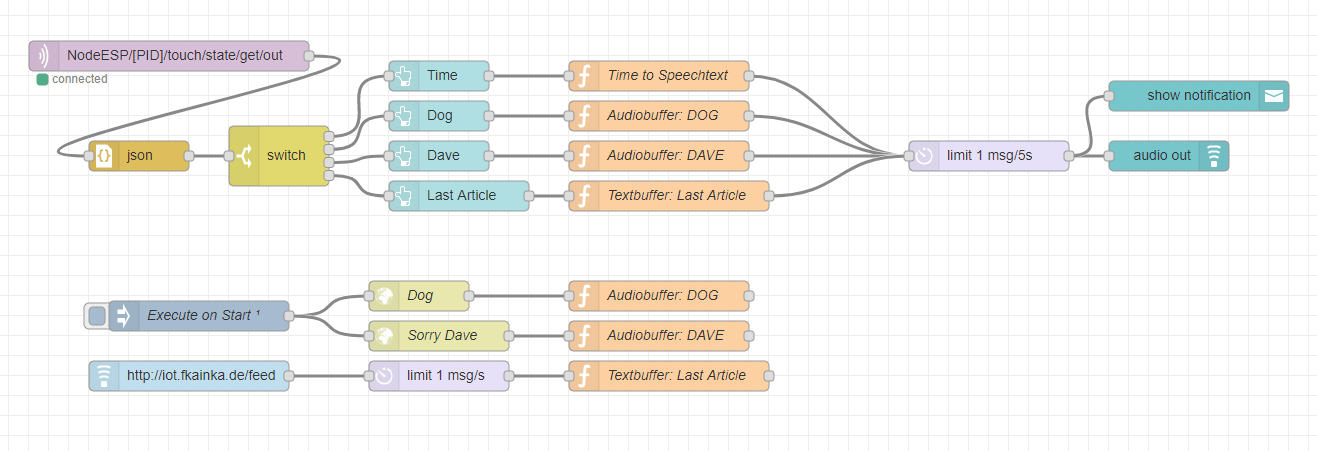
Today we will find again a 1 kOhm resistor hidden behind the door of the Advent calendar. But we are not going to use it today. Instead I would like to show you how you can build a smart touch switch. We will use a simple setup that is made up of four loose hanging wires as touch buttons and a wire jumper to pin 23. Four yellow wires serving as touch buttons Our experiment today is special for its program, which you should activate now on the configuration page. Once enabled, you will notice that the status LED flashes briefly and then turns off, because the board is again running in the power-saving deep-sleep mode. It will not wake up after certain time however. It will wake up only, when you touch one of the touch buttons. The board then sends information via the touch button to the broker who triggered the wakeup. It will look something like this: ...

13.12.2018 · 2 min · Fabian Kainka