Day 2: OnBoard LED and Update

On the second day you will find a breadboard for the upcoming experiments hidden behind the door. I would recommend however, that you do not yet plug your NodeESP into the board. Let’s first look today at how we launch the programs preinstalled on the board and bring the board up to date. Reconnect your board first to a power source. Wi-Fi data that you entered yesterday is still stored and the board should automatically connect to your Wi-Fi network. Then access the board page using the IP or mDNS name (http: //nodeesp.local/). Now, the first thing you do is searching for possible software updates. To do this, open the configuration page, click Advanced Settings at the bottom and click on Check for Firmware Updates. ...
02.12.2018 · 2 min · Fabian Kainka

Day 1: The NodeESP Board

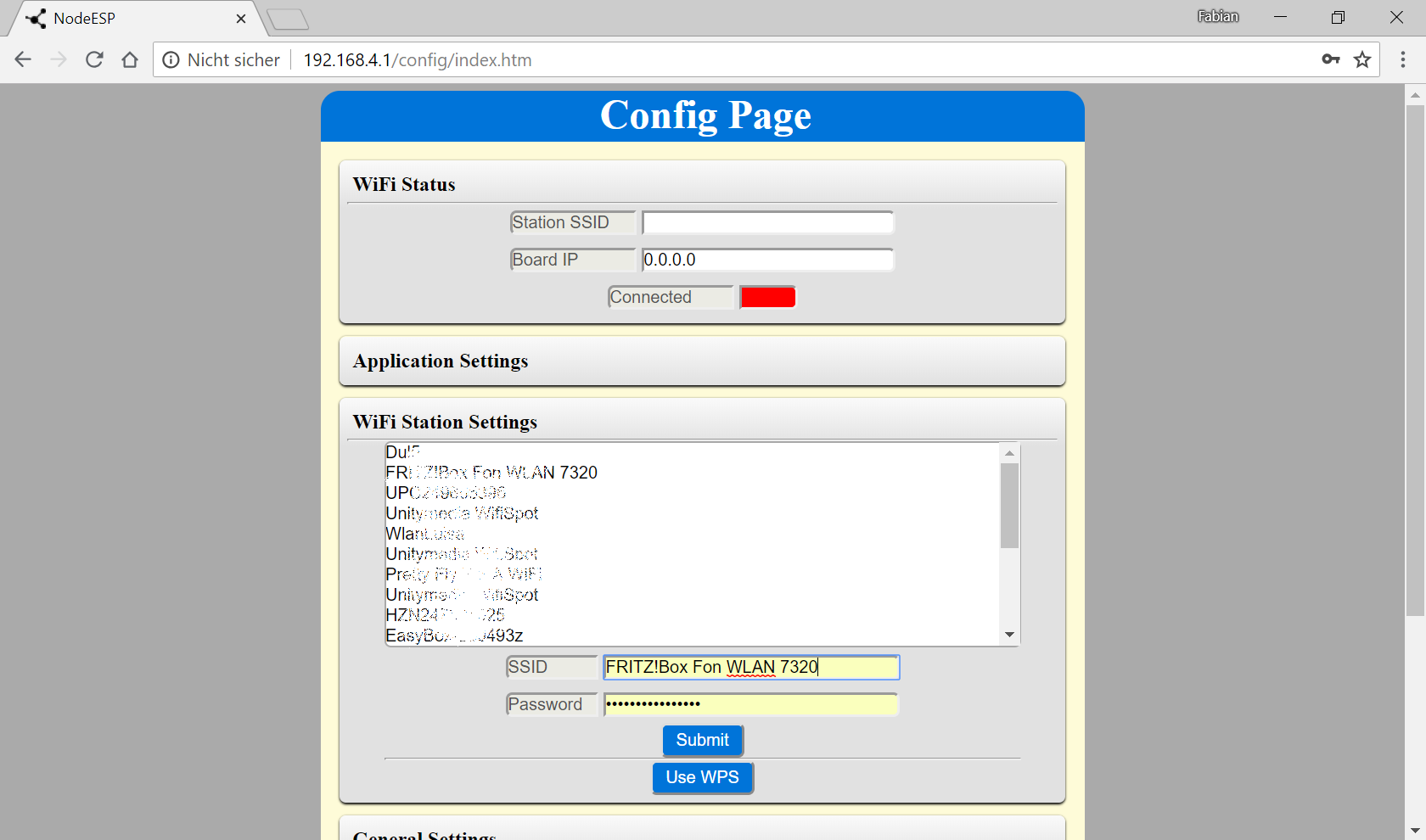
This is the first day of the 2018 Advent calendar project. The time has come to open the first window. Behind this calendar door you will find a microcontroller board. The main task today is to connect to the home network and to become acquainted with the board. The NodeESP board with WPS button selected In a first step we will supply power to the board by simply connecting the board using a MicroUSB cable to the PC or to a standard smartphone charger. You will need at least 300mA to power the board. Older laptops and USB hubs may pose a problem, if they do not have an external power supply however. After a short while the RGB LED on the board turns on and glows yellow. Initialisation is complete. Now all you have to do is enter your Wi-Fi data. There are two ways to do that: ...

01.12.2018 · 4 min · Fabian Kainka

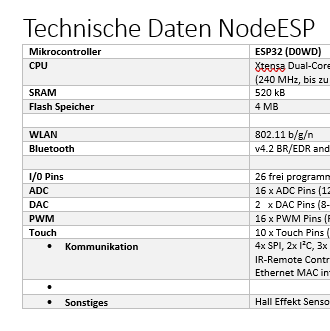
NodeESP Technical Specs

10.11.2018 · 0 min · Fabian Kainka

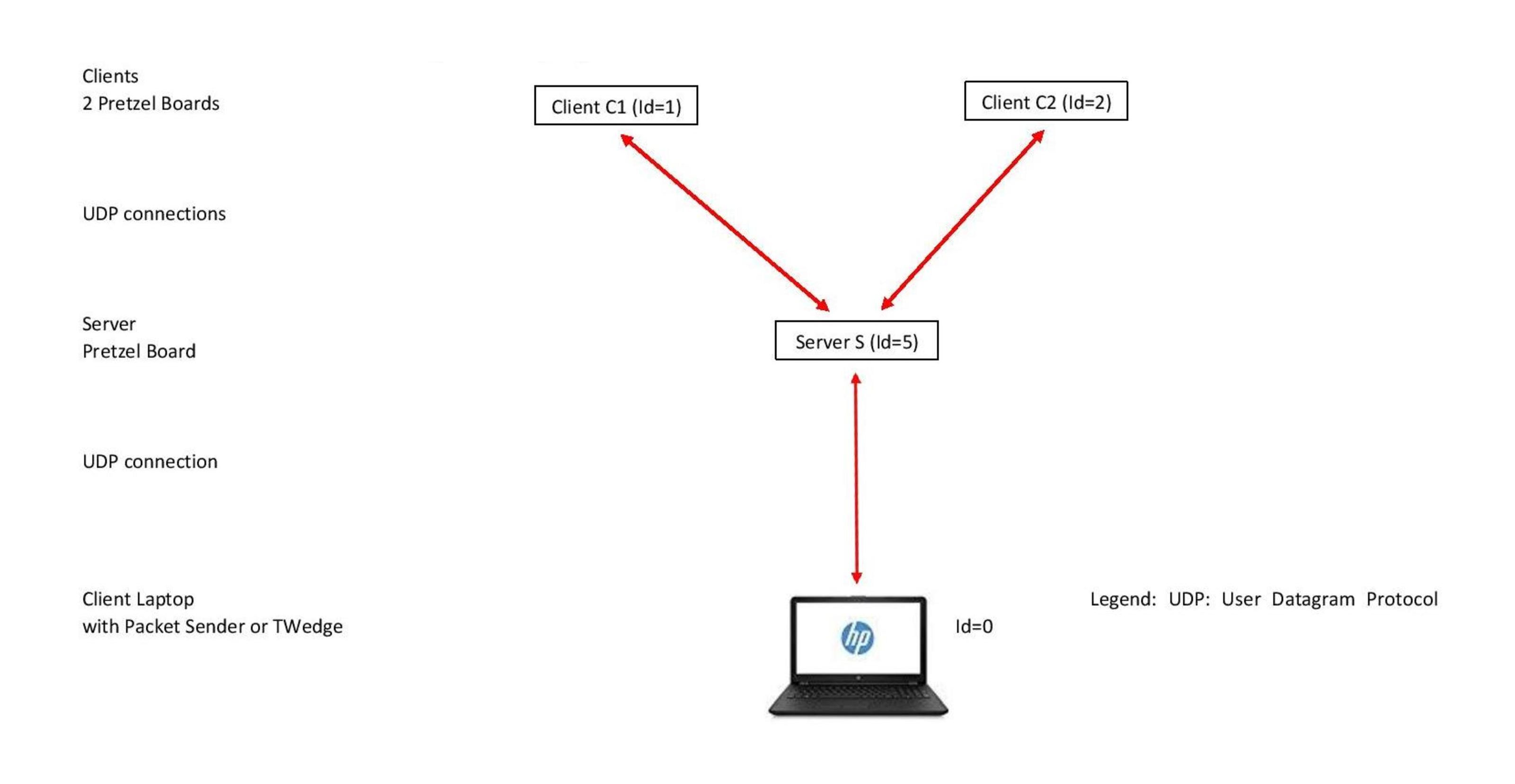
WiFi UDP Y-Network consisting of three NanoESP (Pretzel Boards) and Laptop

Download: Ernteroboter_Programme We have designed a computer network consisting of one Server (NanoESP S), two Arduino Clients (NanoESP C1 and C2) and a Laptop as third Client (running there either Packet Sender https://packetsender.com/download or TWedge of TEC-IT https://www.tec-it.com/de/download/Default.aspx ), to construct a small UDP WiFi network. We denote it as Y-configuration, which symbolizes the connections. The center is the Server S, at the ends of the inclined arms of the Y are the Arduino Clients C1 and C2 and the vertical line is the connection to the Laptop as third Client. ...

08.10.2018 · 7 min · Fabian Kainka

Day 24: Gift box

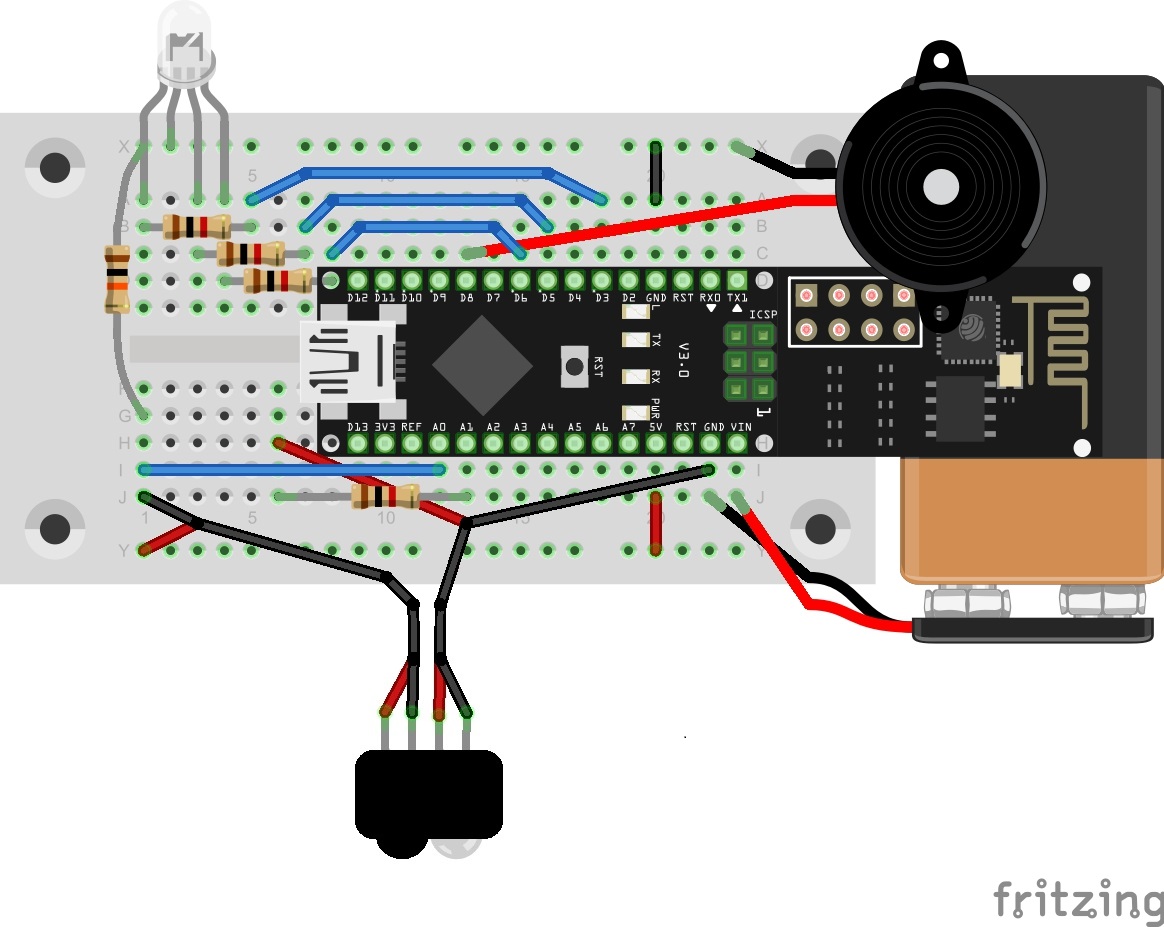
With the last test in this Advent, we get really Christmasy. We’re building a reusable gift box with which you can delight your relatives. Every time someone opens the present, the contents are lit up in an individual colour, and a Christmas sound plays. Behind today’s door is a retro-reflective sensor. This is actually two components, an IR transmitter diode and a phototransistor. It’s not very easy to see which way the elements have to be connected in terms of polarity. For this reason, it’s best if you connect the photoelectric sensor with the connection cables according to the example shown. Then you won’t be able to switch the polarity as easily. ...

24.12.2016 · 6 min · Fabian Kainka

Day 23: MQTT Climate

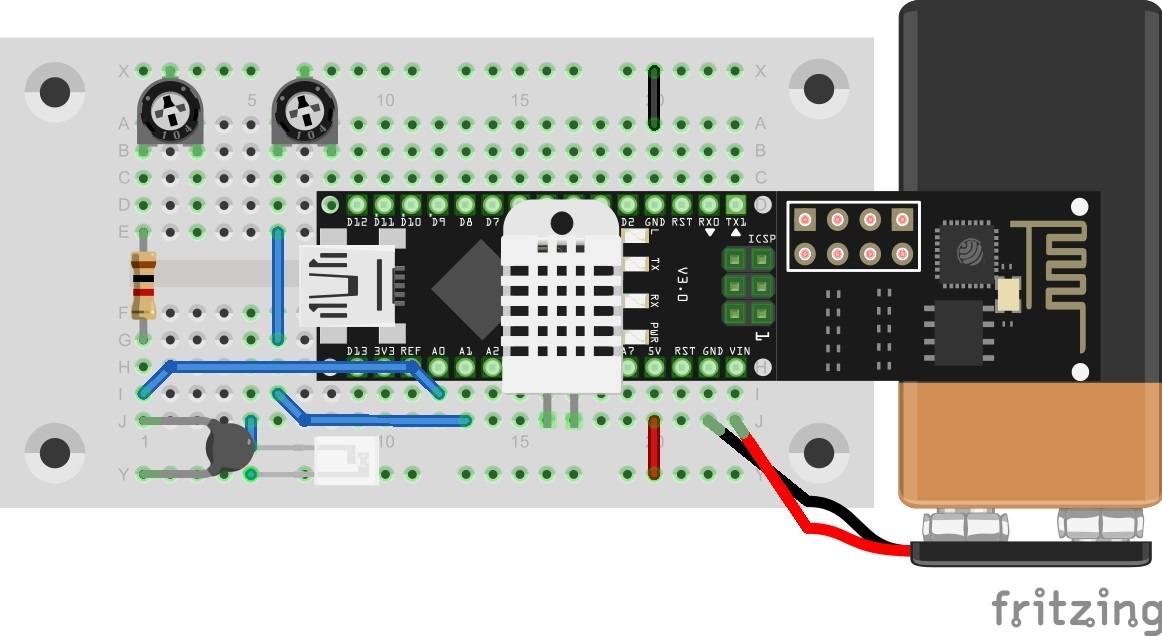
Behind the door for today is a battery clip for a 9 V block, with which you can make the entire system moveable. An alternative to a battery is a power bank (a rechargeable battery pack, normally for mobile phones). You can see in today’s layout picture how to connect a 9 V battery correctly. This is how you can connect a 9 V battery to today's layout Climate data should be captured again today. But this time they are published through the MQTT broker and are thus accessible worldwide. The data could thus be called up via a plug-in and stored in a database. ...

23.12.2016 · 5 min · Fabian Kainka

Day 22: MQTT Cheerlights

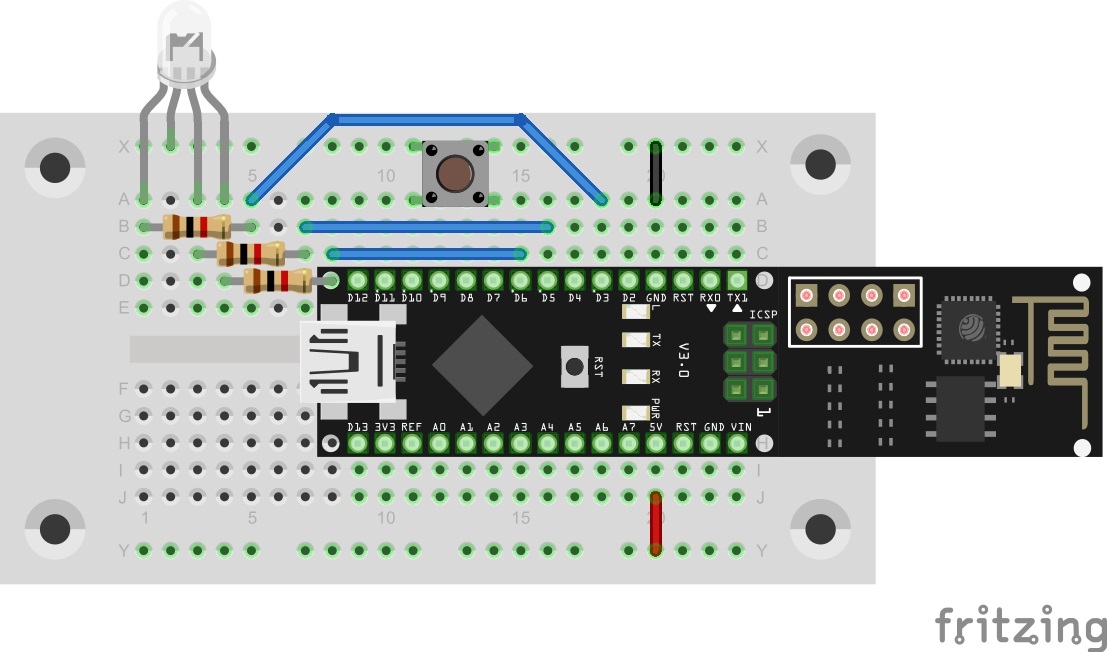
Today’s trial is about MQTT and a global project that was presented last year: the Cheerlights Project by Hans Schaaler. For everyone who doesn’t know the project: It’s about globally networked coloured lights that can be simultaneously controlled through Twitter commands. Another version of this project was part of last year’s Advent calendar. This year we have the version with MQTT and expanded functions. Behind today’s door is a 1-kohm resistor. The layout consists of the RGB LED with series resistors and a button. ...

22.12.2016 · 6 min · Fabian Kainka

Day 21: House automation

In today’s test, we’ll illuminate the characteristics and possibilities of MQTT in more detail by creating a practical scenario. In the example, there is a building with two rooms, each of which has a light switch, a light and an alarm sensor. The light switch switches the light of the respective room on or off. The alarm sensors activate a building-wide alarm. Normally, seven different devices would be used here, which are all connected to each other through an MQTT broker. But since we probably have only one NanoESP, this will simulate all devices. For this reason, today’s layout looks somewhat complicated. The LED D3 is used today as the second light. Therefore, today it won’t show you whether you’re connected to the WLAN. The tilt sensors are used on the extension cables as alarm sensors. A person could, for example, attach them to doors or windows so that they trigger an alarm if the entry opens. Behind today’s door is the second sensor. ...

21.12.2016 · 5 min · Fabian Kainka

Day 20: MQTT (Message Queue Telemetry Transport)

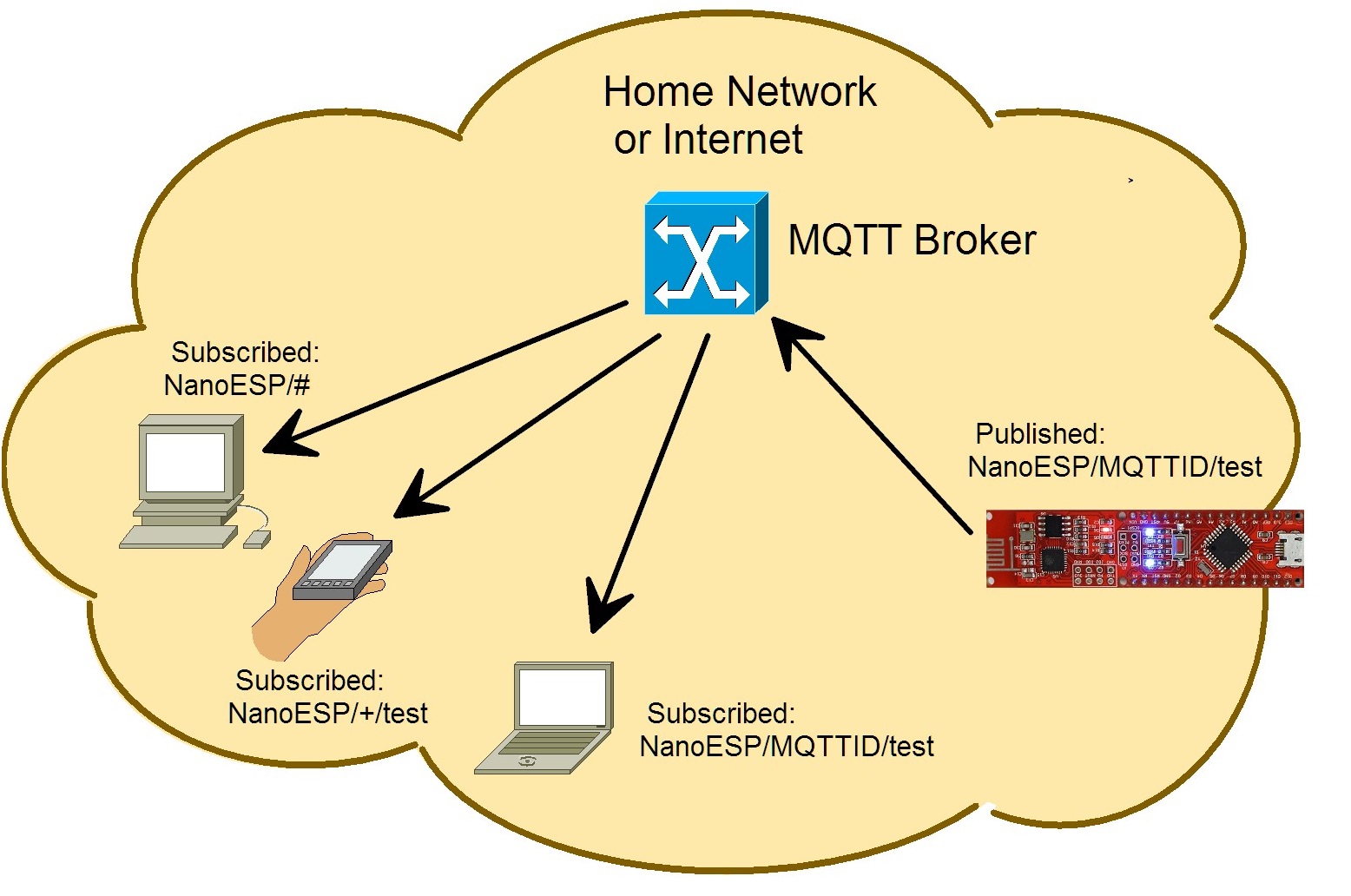
For the last days of this Advent, you’ll now become familiar with a subject that plays a large role in the realm of the IoT. We’re dealing with the messaging protocol MQTT, which was specially developed for the communication from machine to machine (M2M). The protocol is thus so brilliant because e.g. control data, measurement data or texts can be exchanged very easily and compactly. The overhead (data that’s transferred alongside the actual user data) is much lower than with HTTP and can be processed readily even by embedded devices, meaning microcontrollers like our NanoESP. At the same time, the controller doesn’t constantly have to establish a connection and query whether there’s been a change; instead, the connection is continually maintained and the client automatically gives information about changes. ...

20.12.2016 · 5 min · Fabian Kainka

Day 19: Configuration page for the NanoESP

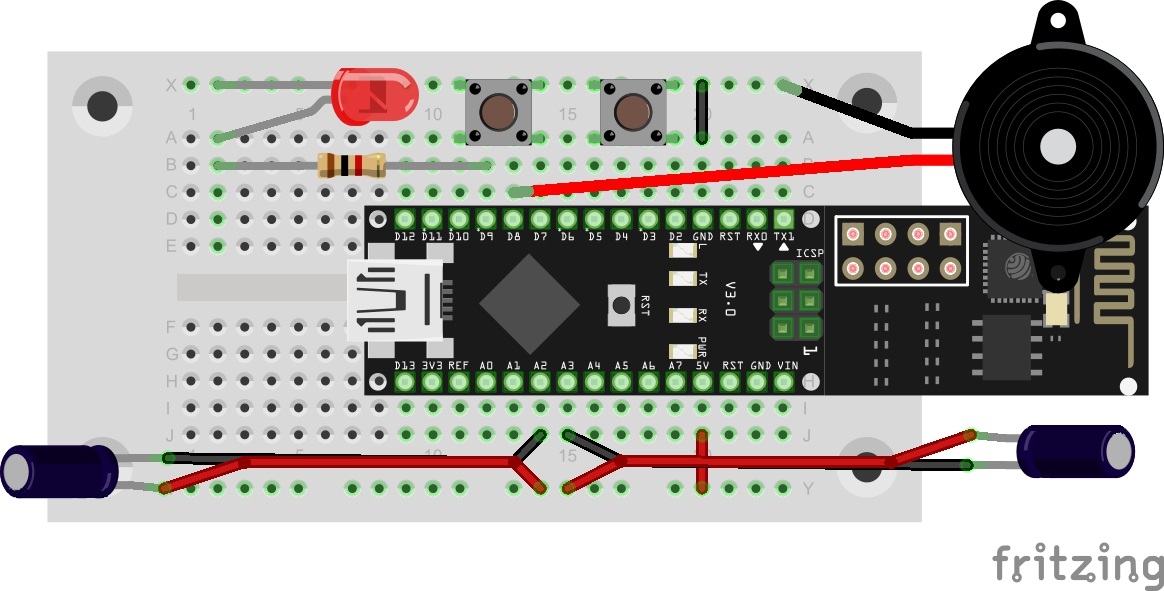
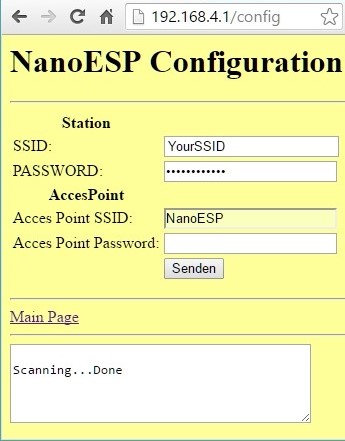
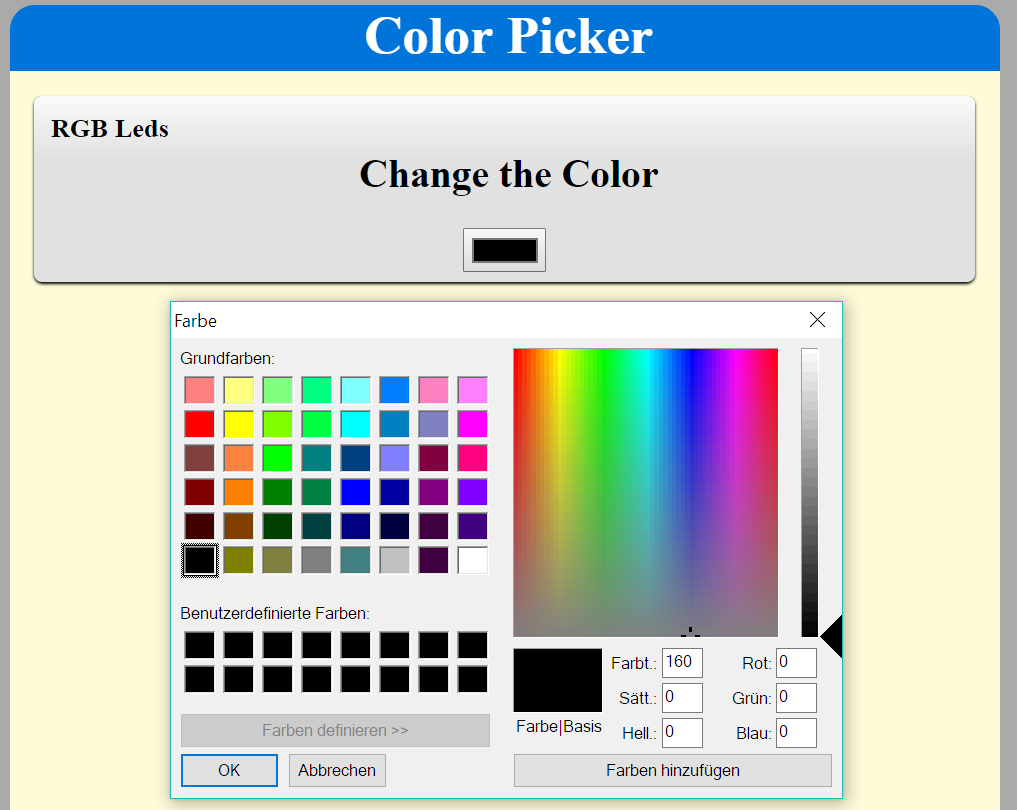
Behind today’s door is another cable. With the two cables it’s possible, for example, to place the RGB LED apart from the board. We’ll need the RGB LED today because the test is about a website with which you can adjust its colours. But that’s not the main aspect: To make the configuration of the NanoESP board especially easy not just for programmers, there is a configuration page through which the WLAN data of the module can be adjusted. But first to the set-up. You see it in the following picture. ...

19.12.2016 · 5 min · Fabian Kainka