Day 8: Virtual LEDs

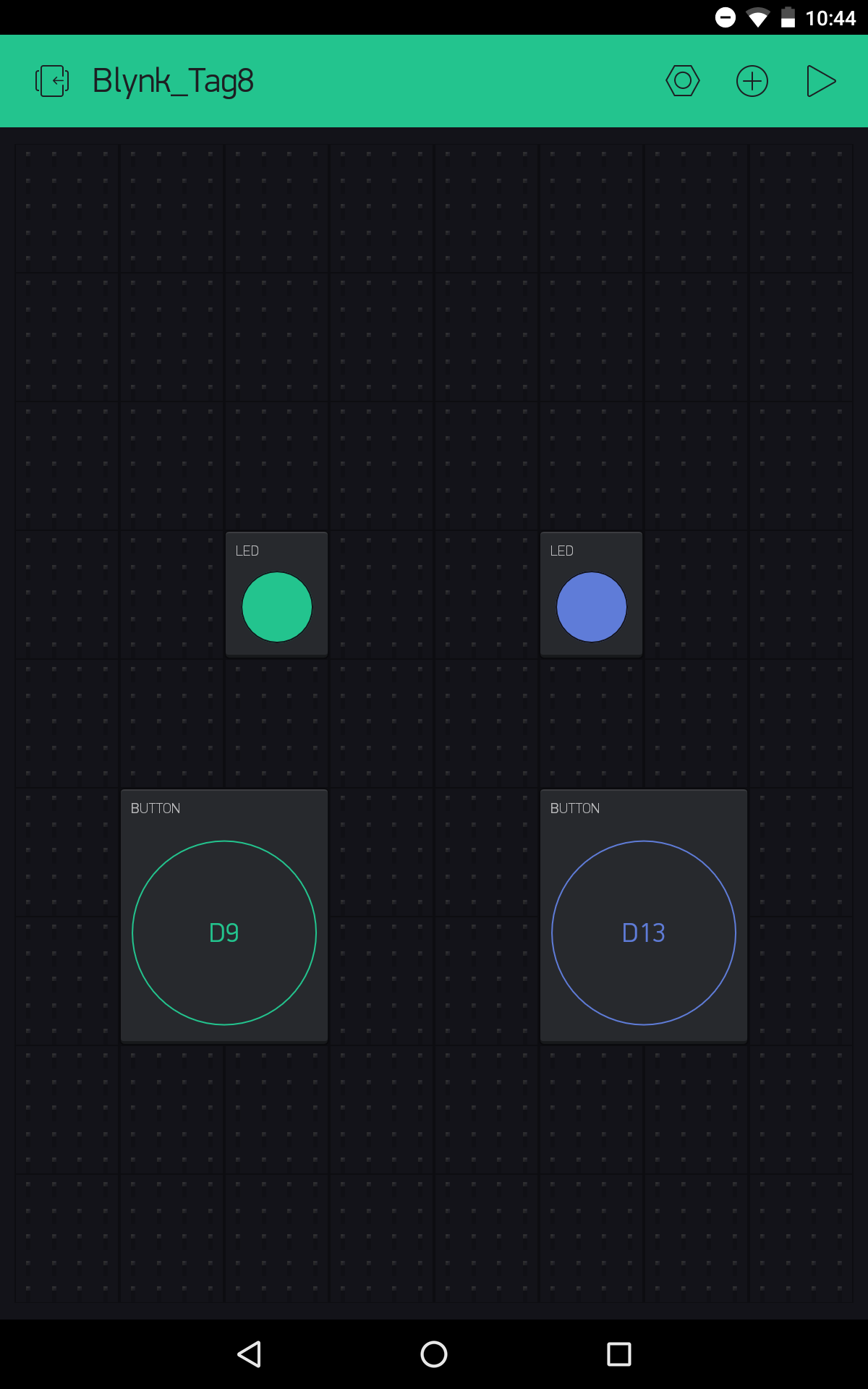
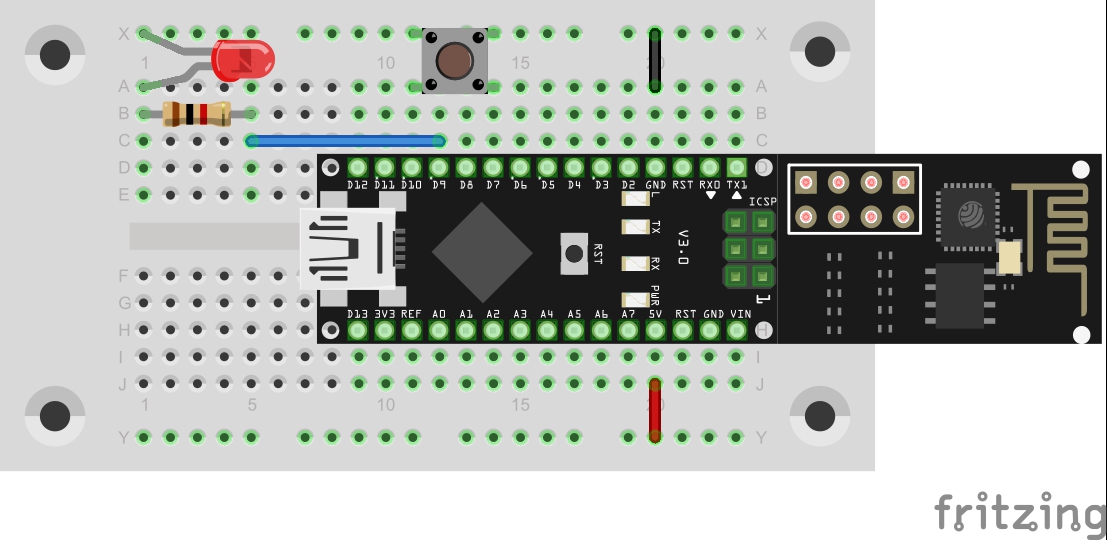
In the test for the sixth day, you saw how a push button on the hardware side can be mapped on a button in the app. However, another widget, namely the LED widget, is much simpler for this instance. In today’s test, you’ll see how to use it properly and what options it offers. Behind today’s door is another 1-kohm resistor that is important for later tests. Today the circuit from yesterday is expanded by a button. ...
08.12.2016 · 3 min · Fabian Kainka

Day 7: Analogue write

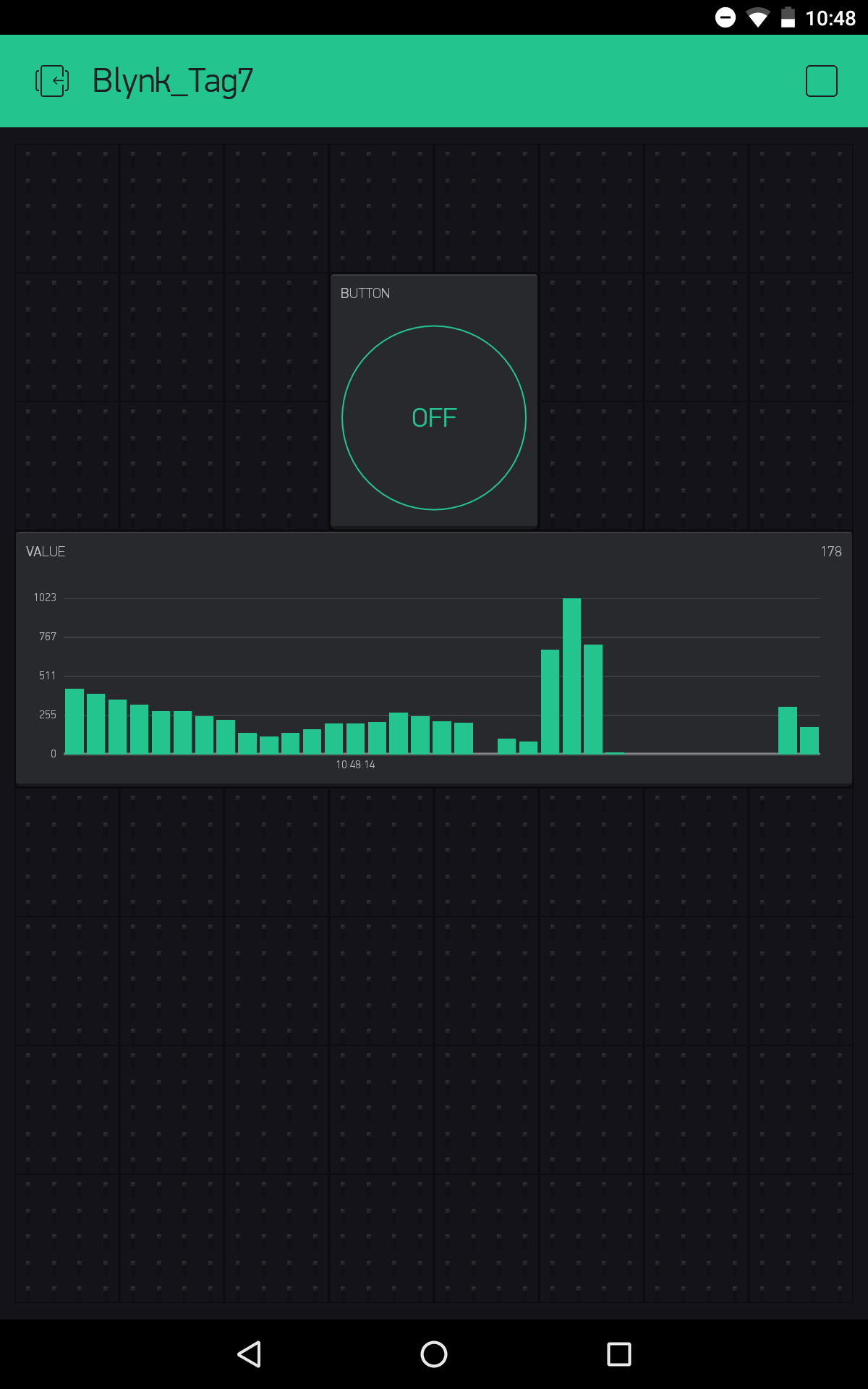
Behind today’s door is a potentiometer. You can use it to transfer analogue messages to the Blynk app. To do this, you need to build the circuit according to the picture. The potentiometer uses the lower wire for the connection to A0 Things can get a bit tight when constructing with the MicroUSB cable. So that everything connects, you first have to disconnect the board from the cable and place the jumpers to be as flat as possible. You also need to be aware that this time the VCC is not applied to the track at the bottom of the image; instead, the track is intended for the connection at Pin A0. ...

07.12.2016 · 2 min · Fabian Kainka

Day 6: The hardware button

In yesterday’s test, you realised a simple control of an LED using the Blynk app. Today you’ll see that the control works in both directions. The push-button switch behind today’s door really comes in handy for this purpose. With it, you can expand yesterday’s circuit as follows: The new layout with push-button switch at D7 You can scan the interface for today here: ...

06.12.2016 · 2 min · Fabian Kainka

Day 5: Blynk

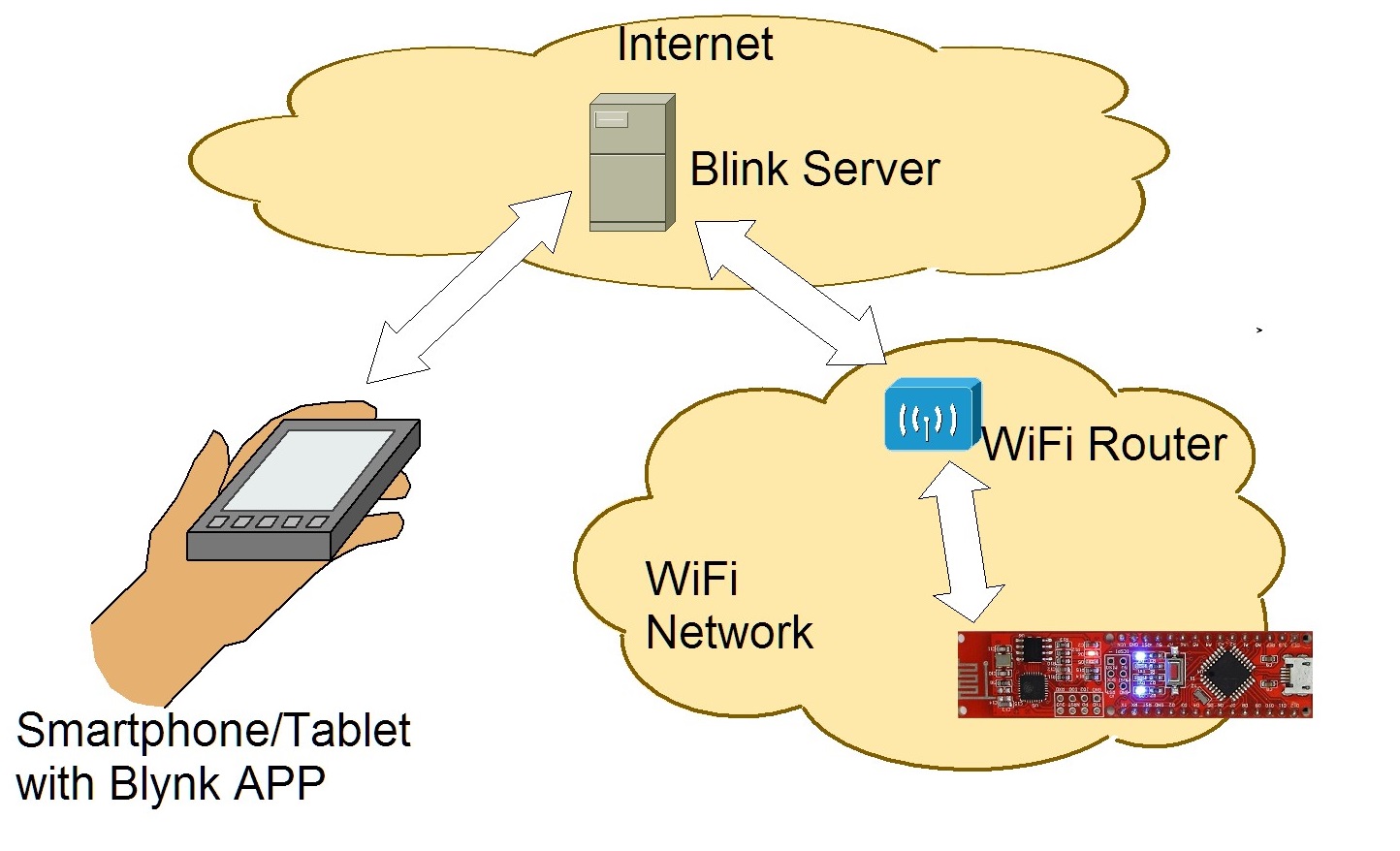
You already established a first connection from the board to the Internet yesterday. In the coming days, this connection should be used effectively. So we’re looking at the online platform Blynk, through which short commands, measurement data or messages can be exchanged between the NanoESP board and your smartphone. Communication with the Blynk Server Blynk enables the simple control of various IoT boards, e.g. the Raspberry Pi or our NanoESP, using an app. You can put the graphic interface together completely on your own, and programming is also extremely simple. As if that weren’t enough, you can even control the board from anywhere in the world. So it’s totally within the sense of the Internet of Things. ...

05.12.2016 · 4 min · Fabian Kainka

Day 4: Setting up Internet connection

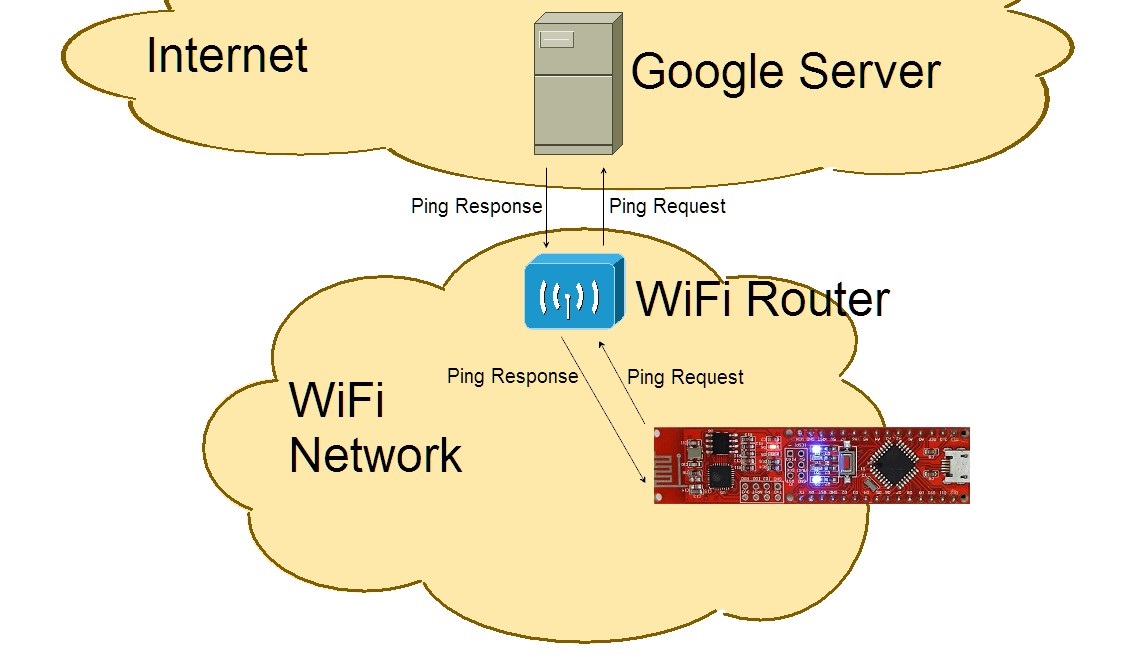
Behind today’s door is a 1-kohm resistor. We’re not going to do much with it today, but tomorrow it becomes important. In today’s test, we want to set up an initial connection to your home WLAN network. For this purpose, you need, as you will on many days to come, to enter your WLAN data in the programme. The Board pings the Goolge server But first you need to download today’s programme. You can download it via the right button on the from the Arduino Create Iframe. ...

04.12.2016 · 2 min · Fabian Kainka

Day 3: The NanoESP in access point mode

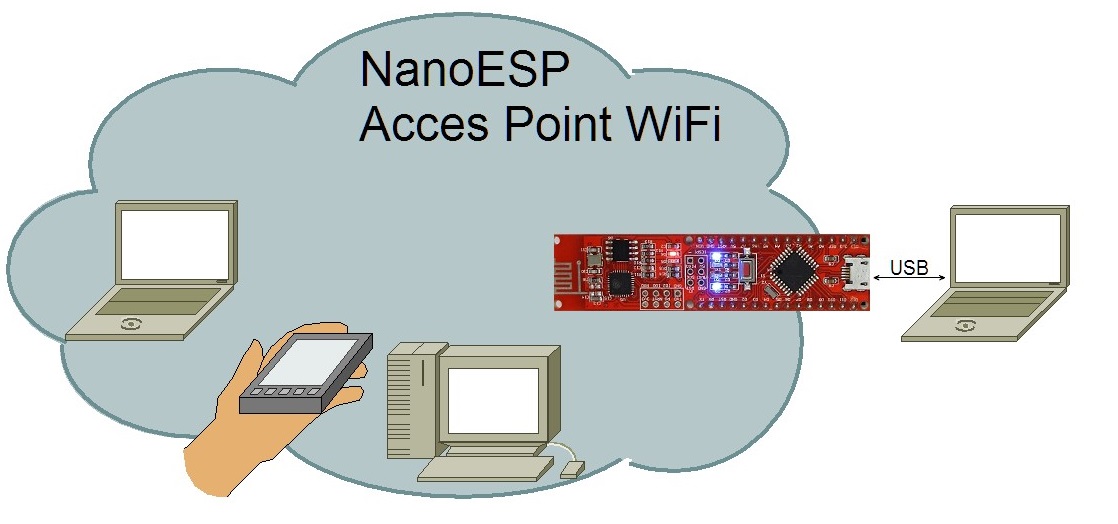
Behind the third door is the jumper wire, which is important for many tests. To prepare for later tests, you can place the supply lines GND and VCC on the outermost lanes. You’ll thereby have better access to these important lines later. The jumpers to GND and VCC In the project for today, you now get around to changing something in a programme even on your own. The following sample programme serves as a basis: ...

03.12.2016 · 2 min · Fabian Kainka

Day 2: The Arduino IDE

This time there’s a breadboard behind the door. On it, you can quickly and easily assemble the hardware layouts of the Advent calendar. Since only the NanoESP is available so far, we’ll start with it. NanoESP on a breadboard It’s best if you plug the controller into the breadboard as shown in the picture. That way, the greatest space remains free for experiments; the WLAN module sticks out behind past the breadboard. The micro-USB cable then hangs between the contact sides and is only a minimal disruption. The board needs to be pressed in gently until it touches the contacts. ...

02.12.2016 · 3 min · Fabian Kainka

Tag 1: Das NanoESP-Board

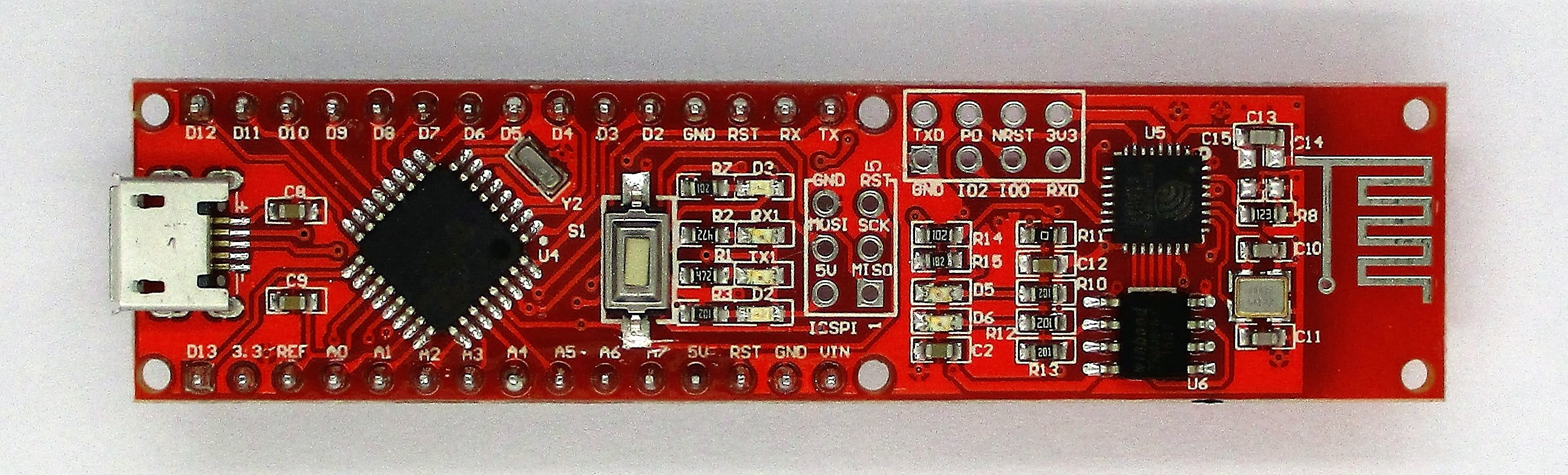
It’s the first of December and thus time to open the first door. Behind it is arguably the most important element of the calendar: the NanoESP board. This Arduino-compatible controller with WLAN function is at the centre of the 24 tests. The NanoESP Board To s briefly, it can be said that the board is most likely a cross between a board similar to an Arduino Nano and a WLAN module with the name ESP8266. The communication between the two elements runs through a serial port generated via software, which is connected to Pins D11 and D12. You should thus avoid these pins with your own projects. ...

01.12.2016 · 3 min · Fabian Kainka

Library for NanoESP & Pretzel Board

19.09.2016 · 0 min · Fabian Kainka

Ausgelagerte Webseiten für den NanoESP

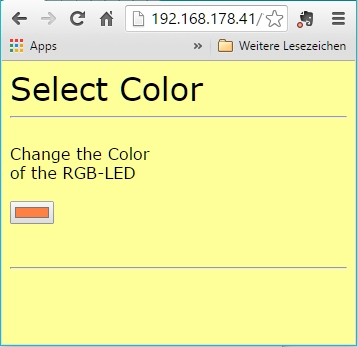
Gerade im Kontext des Adventskalenders oder den anderen Lernpaketen habe ich einige HTML-Seiten für den NanoESP entworfen. Allerdings hat mich dabei immer gestört, dass zum einen der Speicherplatz ziemlich gering ist zum anderen die Übertragung etwas langsam sein kann, vor allem, wenn die Seite oft neu geladen werden muss. Deswegen habe ich mir eine neue Methode überlegt, bei der die dazustellenden Webseite auf einem anderen Webserver liegt und beim Verbinden mit dem TCP-Server des Boards einfach nachgeladen wird. Der Nachteil ist hier vor allem, dass der Client mit dem Internet verbunden sein muss. Das bedeutet auch, das ein privates Netzwerk mit dem NanoESP als AccesPoint nicht möglich ist. Die Vorteile sind aber komplexere Seiten und schnellere Ladezeiten sowie eine insgesamt Entlastung des Boards. Im Folgenden Stelle ich das System anhand des RGB-LED-Beispiels vor. ...

17.04.2016 · 2 min · Fabian Kainka